Tool calls
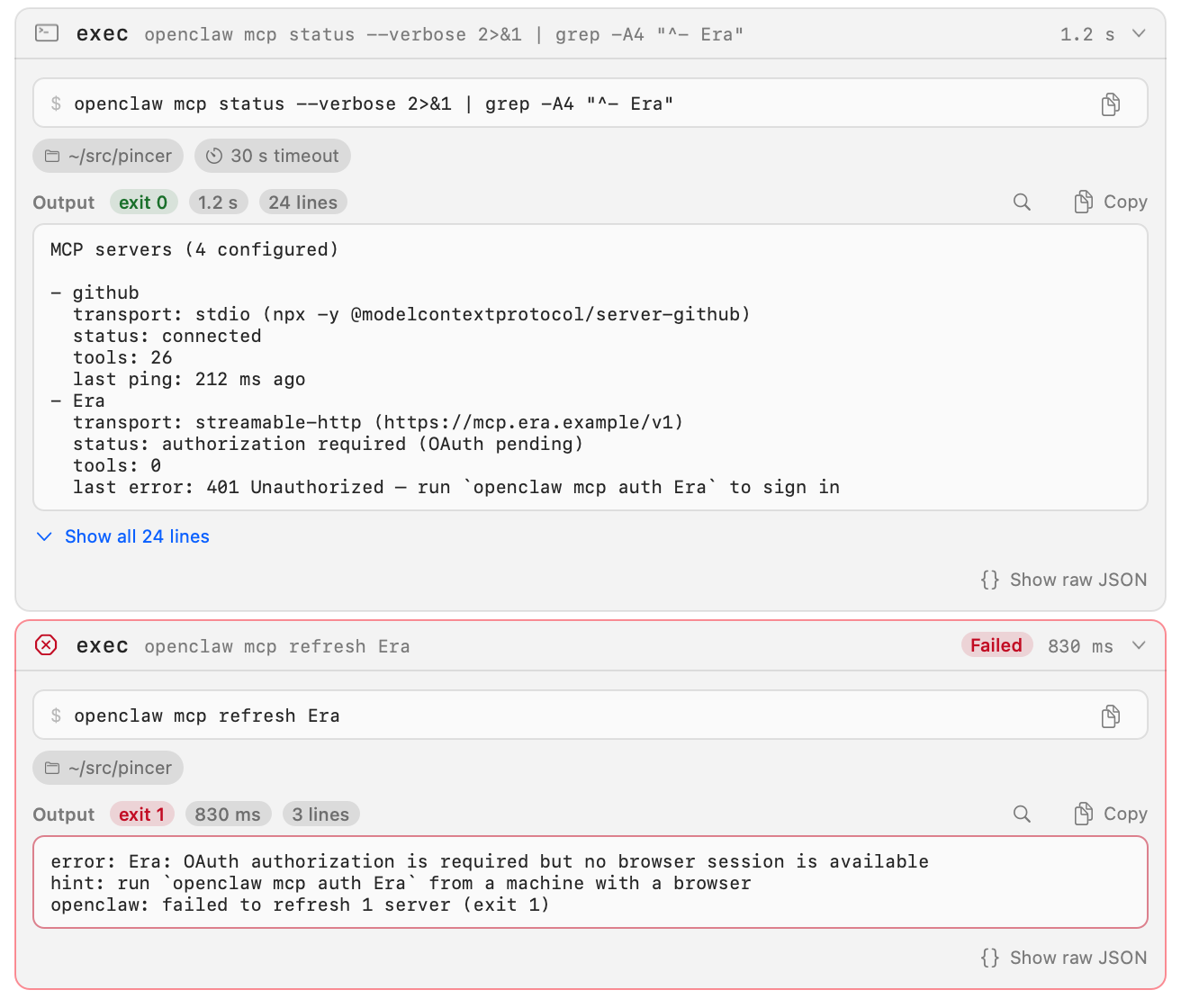
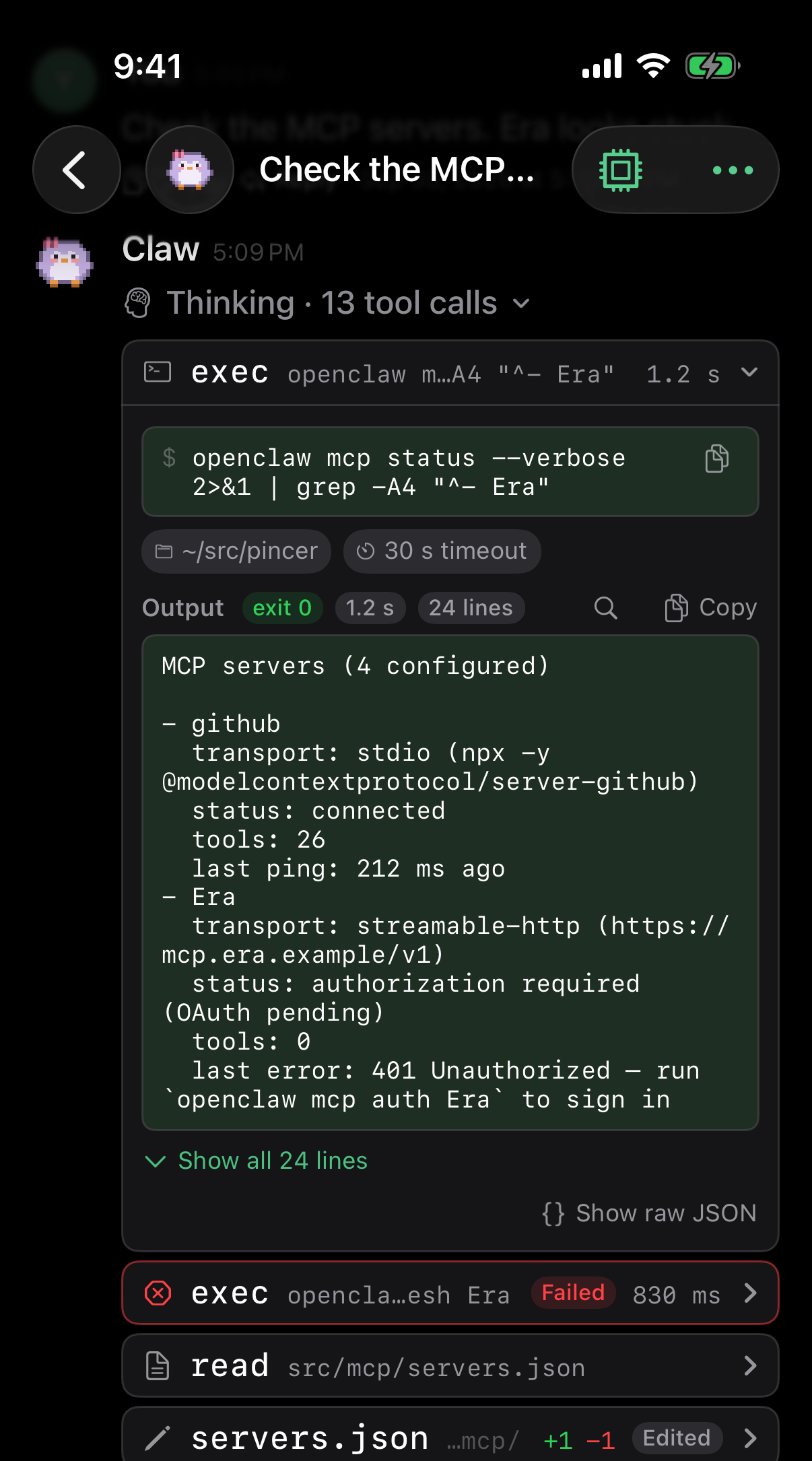
When an agent runs a command, fetches a page or calls a tool, the transcript shows a tool card. Collapsed, it’s a single line. Expanded, it shows what the agent asked for and what came back, laid out for that kind of tool instead of as raw JSON.
macOS
iOS
Collapsed and expanded
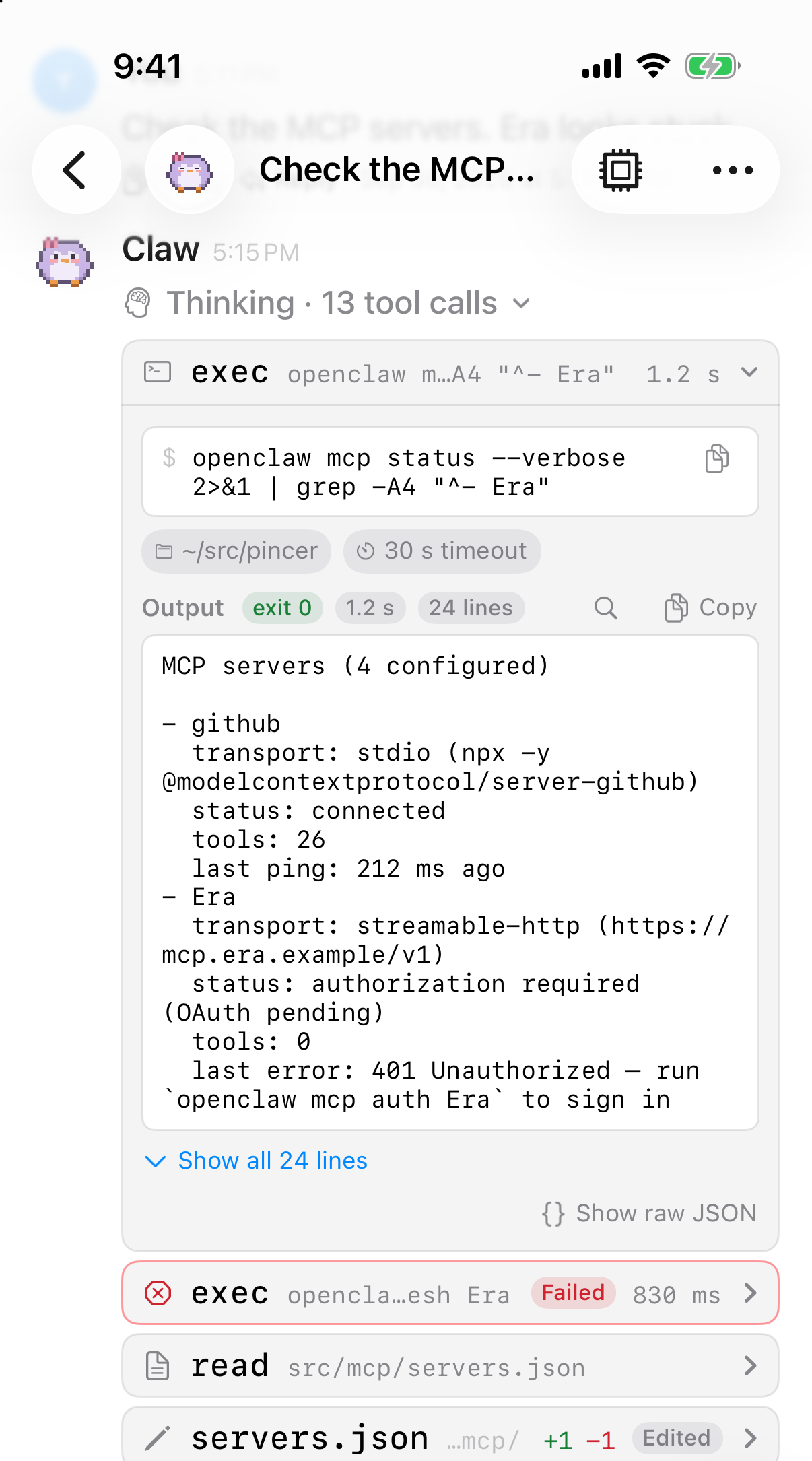
Section titled “Collapsed and expanded”Tap or click a card’s header to expand it, and again to collapse it; the chevron at the right shows which way it’s open. The header shows:
- an icon and the tool’s name. For an MCP tool it reads
server · tool. - a one-line summary: the command, path, URL or query, cut short in the middle so both ends stay visible.
- how long the call took, for example
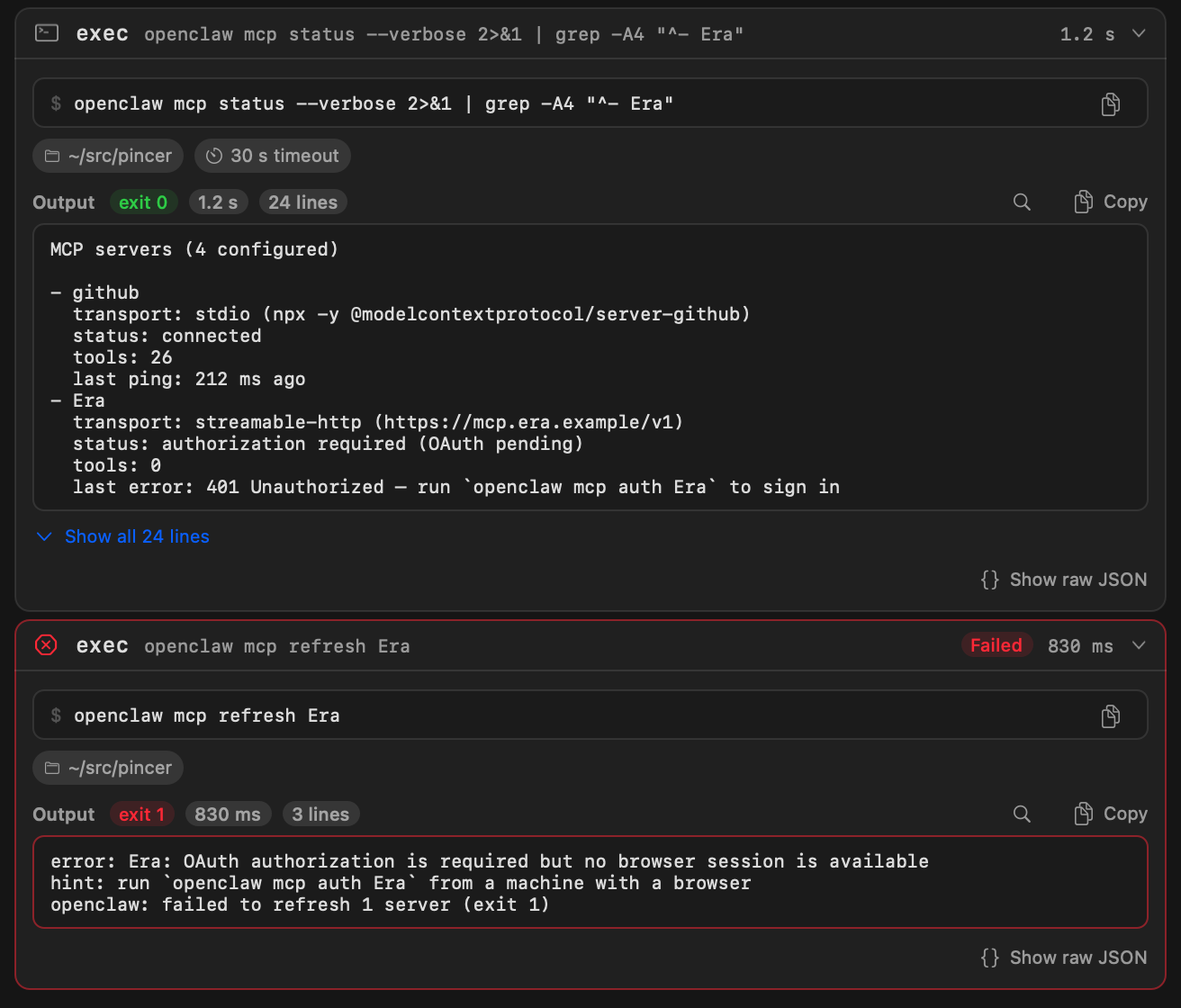
1.2 s, at the right before the chevron. It appears once the call has finished, and only when the gateway reported a time. It’s the first thing dropped when the header is tight, so the name and summary stay readable. - a spinner while the tool is running, and a red Failed badge when the call failed. A failed card gets an outlined red ✕ icon and a red border, so it stands out in a long chat. Every kind of card shows the badge, including the plain one for tools Pincer has no special layout for.
Pincer only works out the details when you expand a card, so long chats stay quick.
Commands
Section titled “Commands”A command such as exec appears in a terminal-style block, monospaced, with a $ prompt and the command exactly as the agent wrote it, without JSON escapes. Copy copies the command without the $.
Chips under the block show the settings that came with the call: the working directory and timeout, and flags such as background, PTY or elevated when they’re set. If the gateway reports where the command actually ran, that directory is shown.
Output
Section titled “Output”The output section is titled Output, or Error in red when the call failed. Its badges show:
- the exit code, green for
exit 0and red for anything else. - how long the call took, for example
1.2s. - the number of lines.
Pincer shows the text the tool returned, not the gateway’s result envelope. Line breaks are real line breaks, terminal colour codes are removed, and text the gateway repeats in its result details appears once. The output isn’t wrapped into a card-width column of JSON, so tables and logs line up. If the result has images, a caption such as “2 images” says so, and the images appear in the message.
Long output is cut to its first 12 lines. Choose Show all N lines to see the rest, and Show fewer lines to cut it short again. Once expanded, the whole result shows in the card, which grows to fit, so there is no scrolling inside the card; the chat scrolls as usual. Copy next to the badges copies the whole output. Everything in a card is selectable.
While a tool is running and hasn’t produced output yet, the card says Running….
File edits
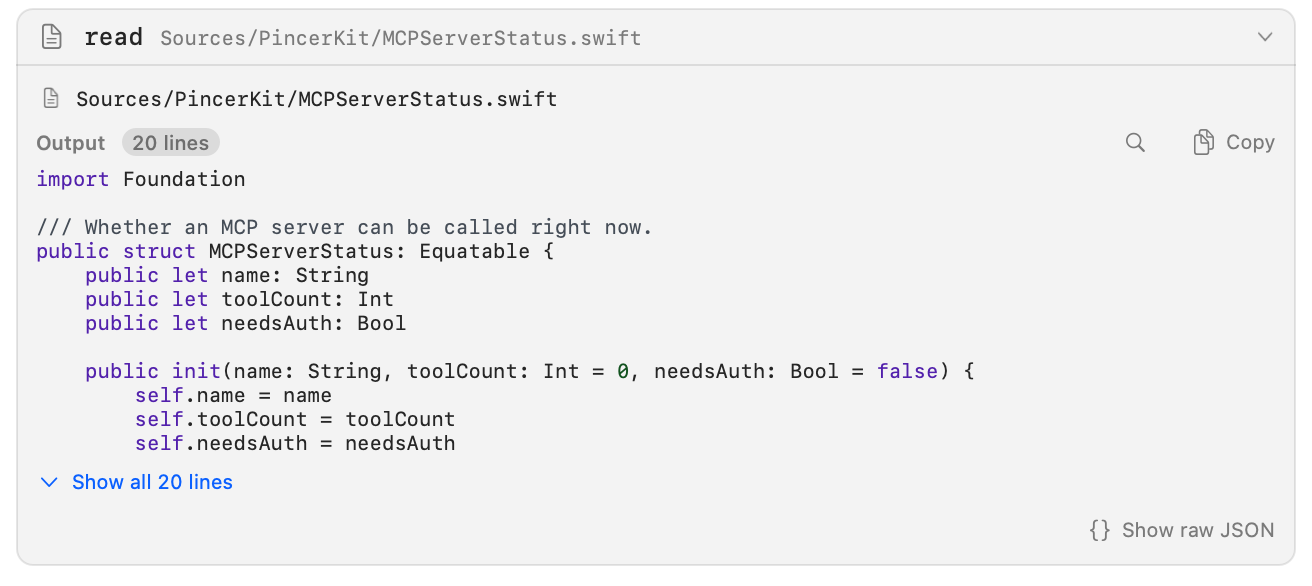
Section titled “File edits”Edits, writes and patches show as diffs instead. See File edit diffs. A file read shows the path (and offset or limit, if given) and its output like any other tool.
Web fetch and web search
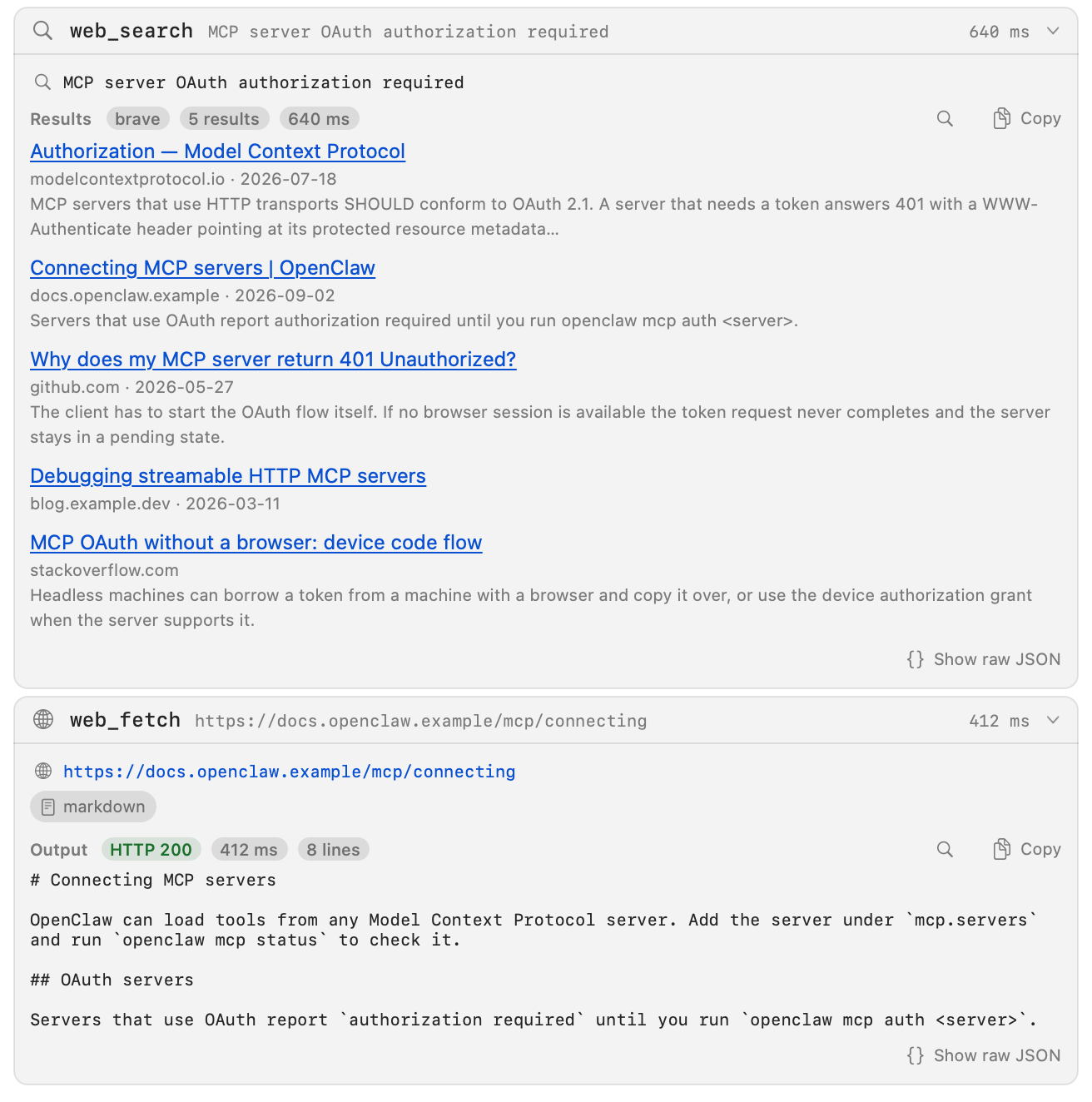
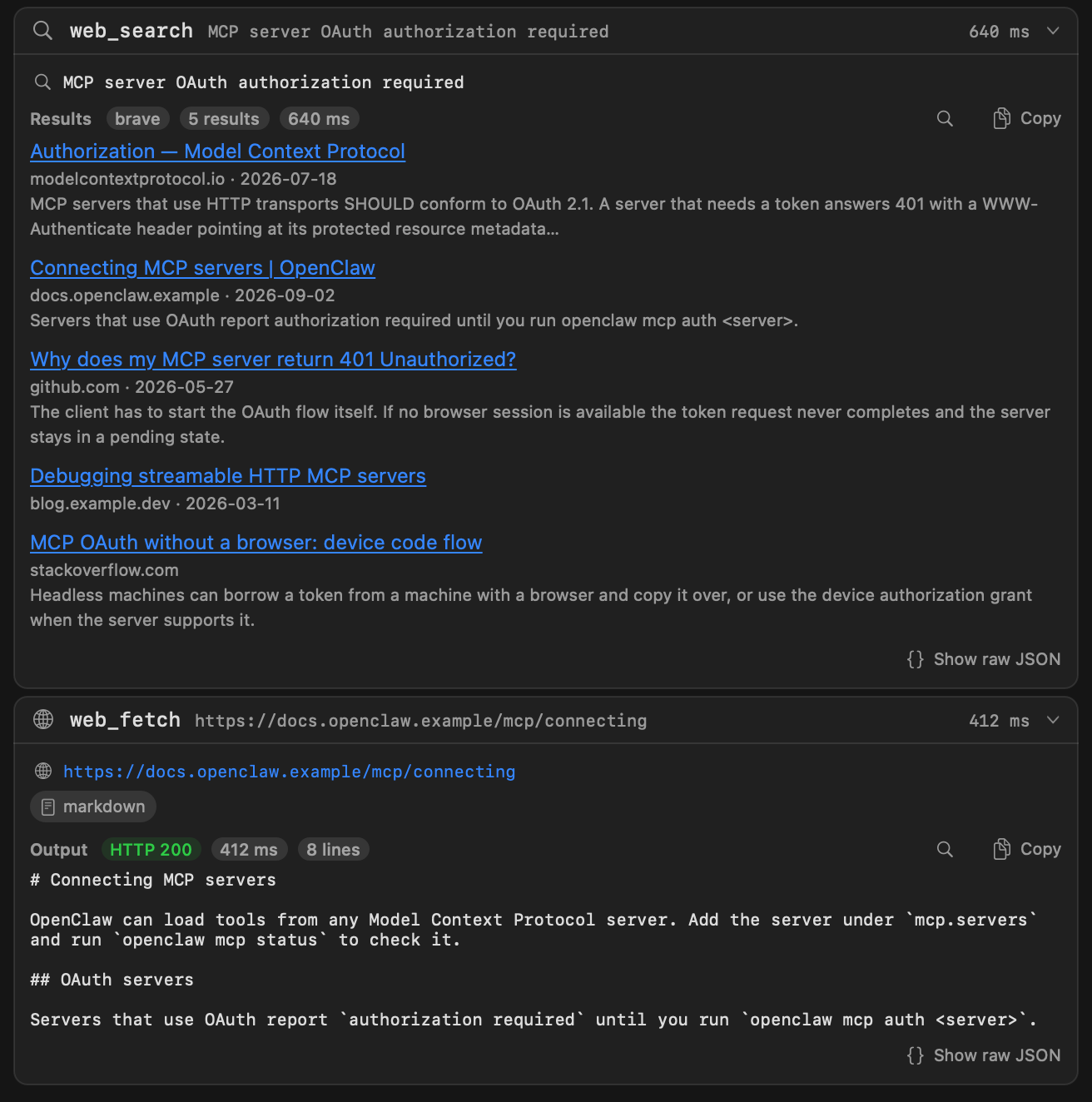
Section titled “Web fetch and web search”A fetch shows the URL, and a search shows the query, each in a chip with an icon. Extra chips show settings like the extract mode or the number of results. A fetch’s output badge shows the HTTP status, and how long it took, when the gateway reports them.
Search results
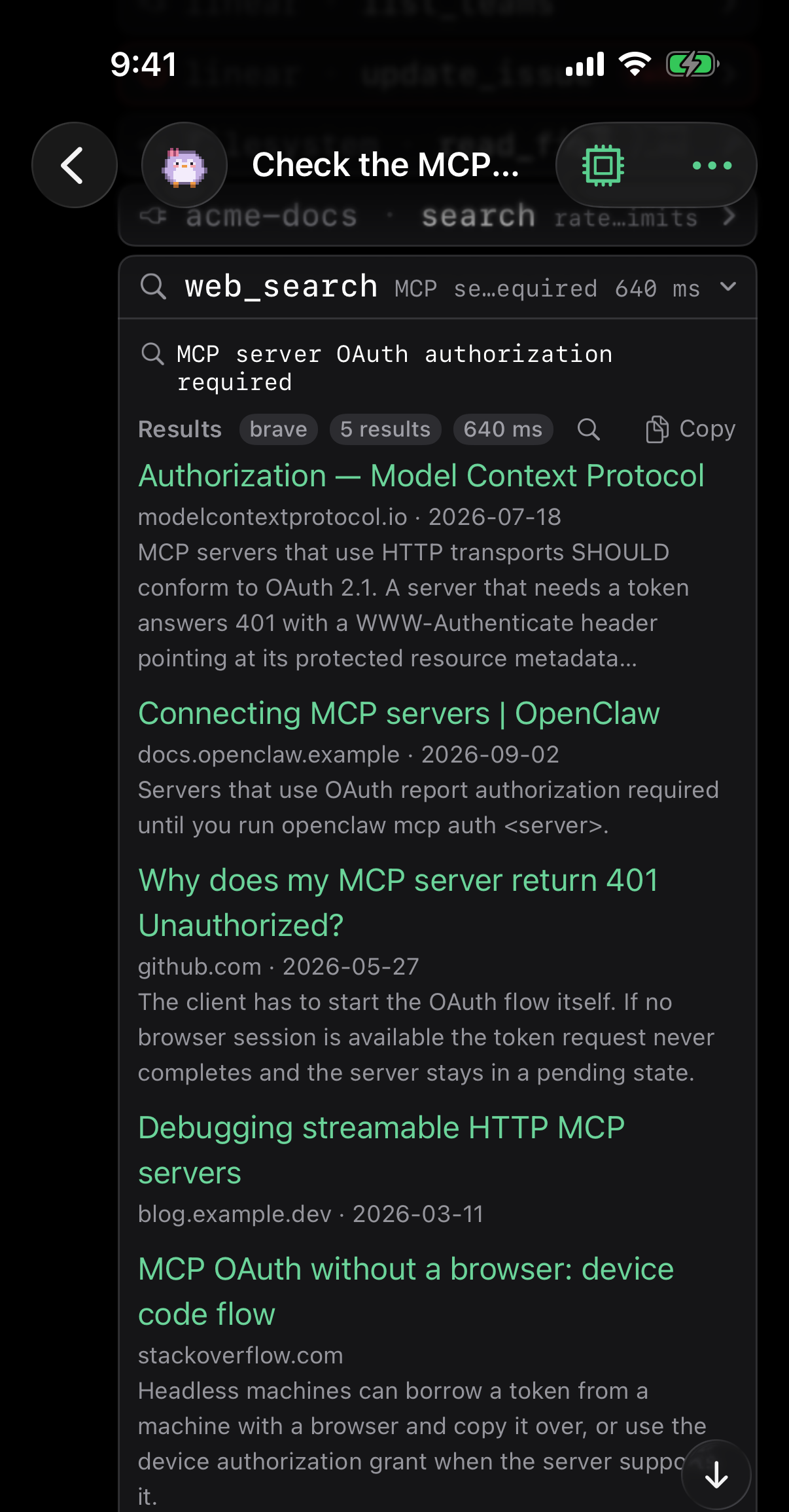
Section titled “Search results”A web_search result appears as a list of links instead of JSON. Each result shows its linked title, site and a snippet preview of up to two lines; the complete displayed snippet remains available to Find. The section is titled Results, and its badges show the search provider (for example brave), the number of results, how long the search took, and cached when the gateway served a saved answer.
Each result is a title link, a dimmed line with the site, host and publish date when the provider gives them, and the snippet. The titles are ordinary links inside the card’s selectable text, so click or tap one to open the page, and use the VoiceOver links rotor to move between them. On macOS, hovering a title shows the full URL. Copy copies one title and url pair per result.
Some providers answer the question instead of listing pages. Then the section is titled Answer, the card shows the answer text, and a Sources list of links follows. If the search failed, the card shows the provider’s own error message, with its documentation link when it sent one, like any other tool.
When a provider or OpenClaw shortens or omits part of the search output to fit its limits, the card shows Search output was truncated. This can refer to shortened text or omitted results or sources.
macOS
iOS
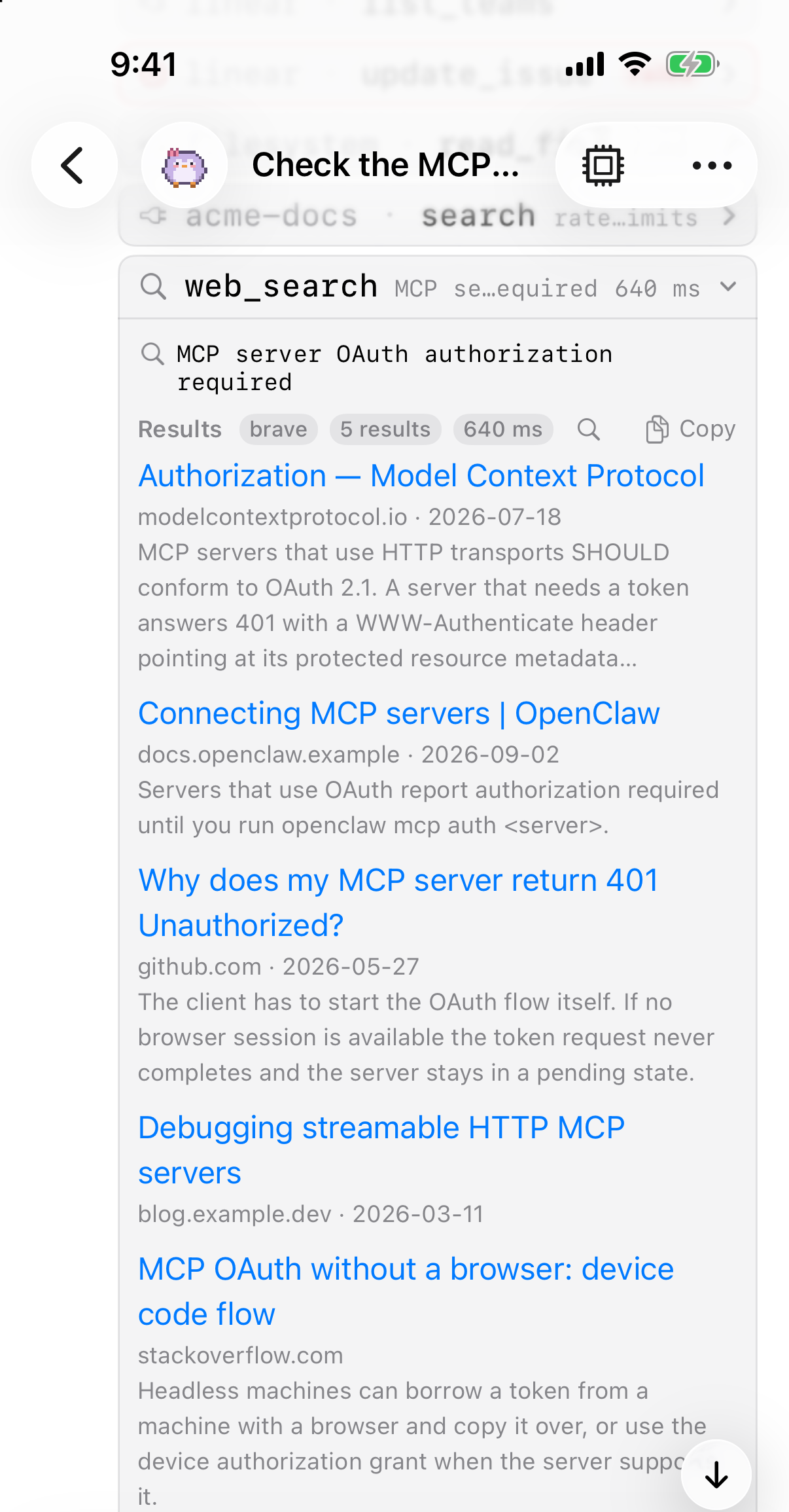
Only http and https links are shown. If the gateway’s result is in a shape Pincer doesn’t recognize, or the chat was cached by an earlier version of Pincer without the result details, the card shows the output as plain text. Show raw JSON in the section’s title row always shows the full result. To get the links for an old cached chat, clear the cache under Settings → General → Storage (see Local cache).
Browser page previews
Section titled “Browser page previews”When the agent uses the browser tool to open, navigate, screenshot or otherwise work with a web page, the chat shows a page card for it, as the OpenClaw Control UI does. The card’s footer shows the site’s icon (or a globe), the page title and its address. Click or tap the card to show that page in the browser panel, when your connection has Full Management and the gateway offers the live browser; otherwise the page opens in your web browser. Right-click it on Mac, or touch and hold it on iPhone, for Open in Browser, which always uses your web browser, and Copy Link.
- The card sits right after the turn’s tool calls and before the reply. It stays in the same place while the agent is working, after the turn finishes, and whether the tool calls are collapsed or expanded.
- Each turn shows one card per browser tab, for the last page the agent visited in that tab, and at most three cards.
- While the browser panel shows that page live, the card’s thumbnail updates from the live picture.
- Only
httpandhttpspages get a card. Failed browser calls don’t. - The title and address come from the tool result itself, so the card also works offline and from the local cache, and it needs no admin access. Chats cached by an earlier version of Pincer don’t have the page details; to get cards for them, clear the cache under Settings → General → Storage (see Local cache).
When your gateway supports link previews (controlUi.linkPreview), Pincer asks it for the page’s site icon and preview image (its og:image) once the turn finishes. When the gateway sends an image, the card shows it above the footer. The gateway fetches the page itself, without your cookies, and you can turn this off on the gateway with gateway.controlUi.automaticallyFetchFavicons: false. Pincer doesn’t ask for previews of pages at local hostnames (such as localhost or .local names) or bare IP addresses. Without a preview, the card shows just the footer.
The gateway never sends the agent’s own page screenshots to chat clients, so the preview image is the site’s chosen image rather than a live capture of the page.
Pincer keeps a small number of recent previews in memory and decodes them in the background, so scrolling past cards never stalls.
MCP tools
Section titled “MCP tools”Tools that come from an MCP server show the server and the tool separately, github · search_issues, so you can see which server handled the call. The server is also a chip in the expanded card, followed by the tool’s arguments. Choose Open MCP Server in the expanded card to jump to that server in MCP Servers. If the server isn’t in your config, for example one a plugin declares, the control reads Show MCP Servers and opens the list. Right-click a tool row on Mac, or touch and hold it on iPhone, to open the same server action or copy the raw tool name, such as github__search_issues.
Arguments
Section titled “Arguments”Arguments appear as a list of keys and values instead of a block of JSON. Keys are dimmed, and values are monospaced. Text values keep their line breaks. A nested object or list is shown on one line, in compact form.
Choose Raw JSON in the section’s title row to see the arguments as the agent sent them, pretty-printed, and Formatted to go back. Arguments already shown as the command or as a chip aren’t repeated in the list.
Any tool Pincer has no special layout for uses this list, with its output as plain text.
Syntax highlighting
Section titled “Syntax highlighting”Output that is JSON, and JSON values in a call’s arguments, is lightly coloured: keys, strings, numbers, and true, false and null each get their own colour. A file read is coloured by its file extension (Swift, JavaScript and TypeScript, Python, shell, Ruby, Go, Rust, C-family, JSON and YAML) with strings, numbers, comments and a few keywords. Markdown and unknown types stay plain. The colours follow light and dark mode and adapt to the card’s actual background, including a custom code background. When Increase Contrast is on, Pincer targets 7:1 where the background allows it; on mid-tone surfaces it chooses the strongest readable endpoint. The text itself never changes, so copying and Find work as before. Highlighting is worked out only when you expand a card.
macOS
Searching within a card
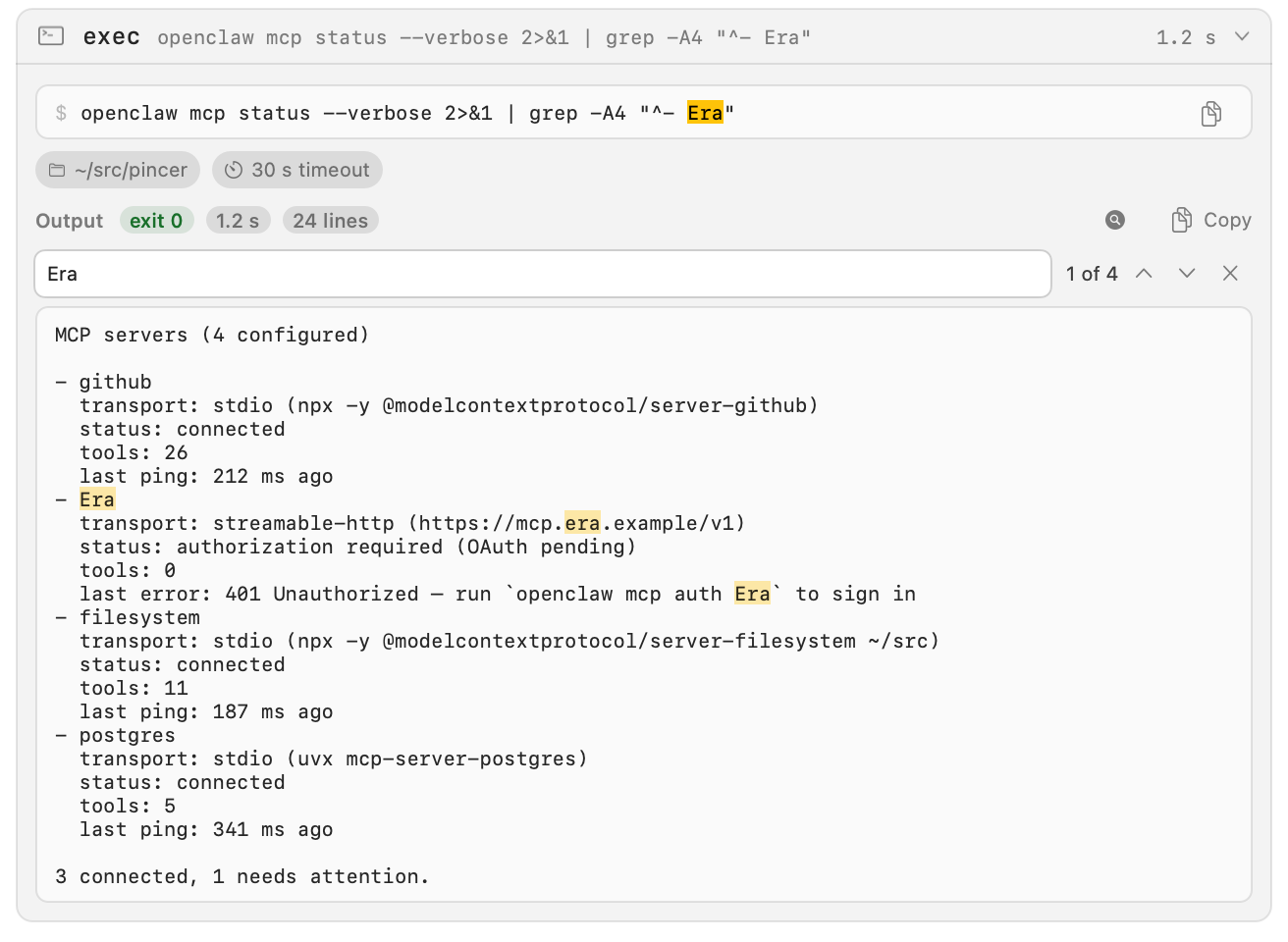
Section titled “Searching within a card”To look for something inside one card’s output, choose the magnifier button next to Copy in the output’s title row. It’s there on search results too. A search field opens in the card. As you type, every match in the card’s output and arguments is highlighted and the field shows where you are, for example “3 of 12”, with previous, next and close buttons.
- Return goes to the next match, and Shift-Return to the previous one. The card and chat scroll to show it.
- On macOS, ⌘G and ⇧⌘G also move between matches, and ⌘F with the cursor inside a card’s output opens that card’s search (and puts the cursor back in its field if it’s already open). Anywhere else ⌘F still opens Find in Chat.
- Esc, or the magnifier again, closes the search and clears the highlights.
Searching shows all of the card’s lines, so a match is never hidden behind Show all. Only that card is redrawn as you type; the rest of the chat isn’t touched.
macOS
iOS
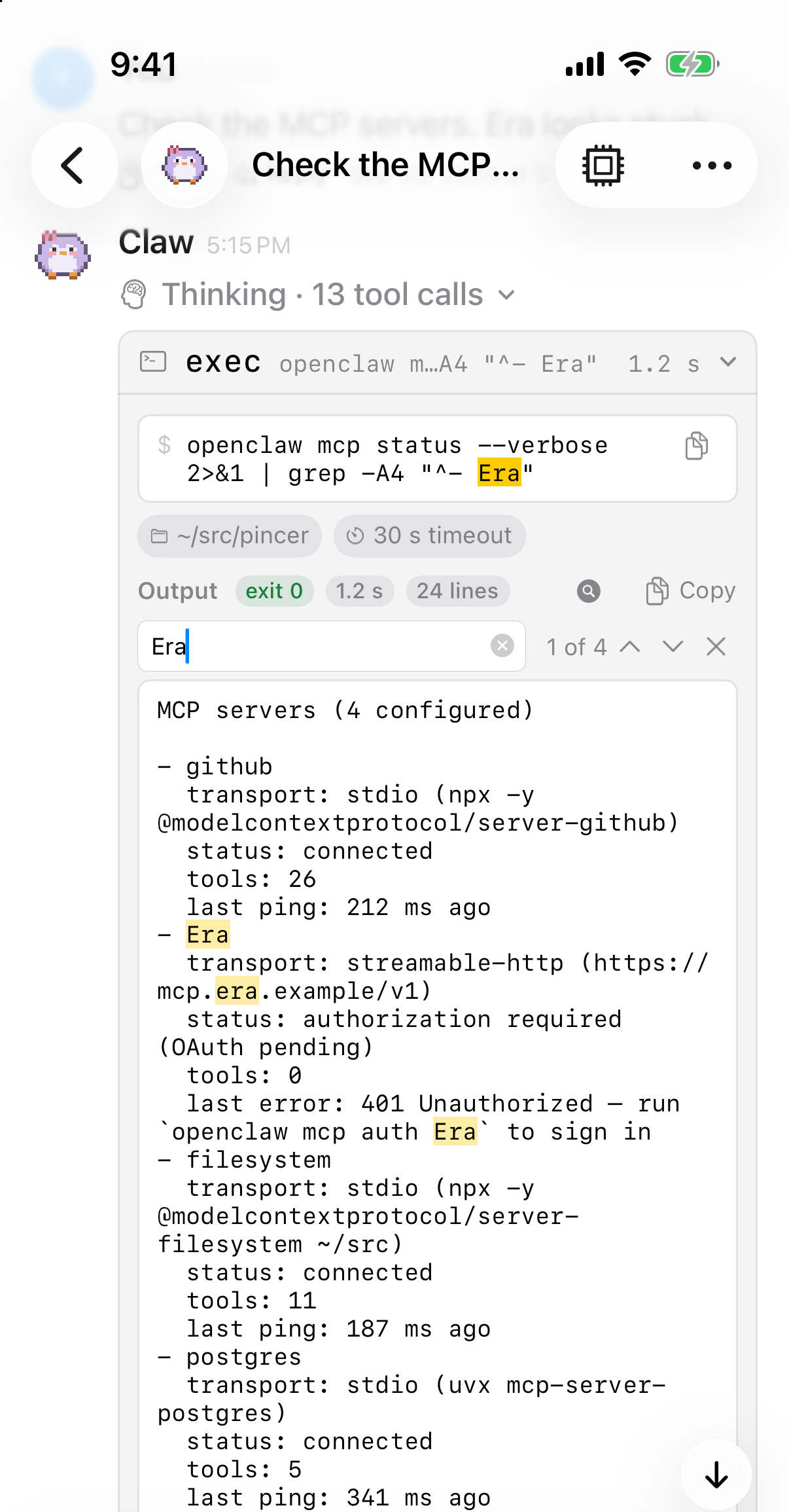
On iPhone and iPad the field works the same, with the on-screen keyboard or a hardware keyboard (Return, Shift-Return, Esc, ⌘G and ⇧⌘G).
Finding text in tool calls
Section titled “Finding text in tool calls”With Include Tool Output turned on in Find in Chat, Find searches what the card shows: the command or headline, the argument list and the output. While a card has matches, its whole output is shown, so a match is never hidden behind Show all. With Raw JSON on, the card shows the raw arguments, and Find still searches the formatted text.
Accessibility
Section titled “Accessibility”- The header is a button. VoiceOver reads the tool, its summary, whether it failed and whether it’s expanded, for example “exec,
df -h, failed, expanded”. Durations are spoken in words, so a long call reads as “2 minutes 5 seconds”. - Chips and badges are labelled: “Working directory”, “Exit code 1”, “Took 1.2 seconds”.
- Text follows your text size (Dynamic Type on iOS and iPadOS) and works in light and dark mode. The exit code badge is always spelled out, so colour is never the only signal.
See Accessibility for more.
Light and dark
Section titled “Light and dark”Tool cards follow the app’s light or dark appearance.
macOS
iOS
macOS
iOS
Try it in the demo
Section titled “Try it in the demo”In the demo, open the Check the MCP servers chat. It has a command with multi-line output, a failed command, a file edit, an MCP tool call, a web fetch, a web search with a list of results, and a read of a Swift file with syntax colours, all simulated.
If a diff line number reaches the largest supported integer, that line keeps its number and following lines are shown without an unrepresentable line number.
 Pincer · MIT License
Pincer is an independent client and isn’t affiliated with the OpenClaw project.