Channel Status
Channel Status shows every channel account on your gateway (Discord, Telegram, WhatsApp and the rest) and whether it’s working. You can reconnect, start, stop or log out an account, and link WhatsApp with a QR code, without a terminal.
This page is about whether accounts are connected. Their settings are on the Channels settings page, and letting a new person message your agents is under Message Requests.
Opening it
Section titled “Opening it”Open Gateway Settings and choose Channel Status in the sidebar, just below Health. The row gets an attention mark when a channel account needs a look.
From the Health page, Show in Channel Status in the context menu of a channel account issue, or of a channel in its Channels list, opens this page at that account and highlights it.
What’s on the page
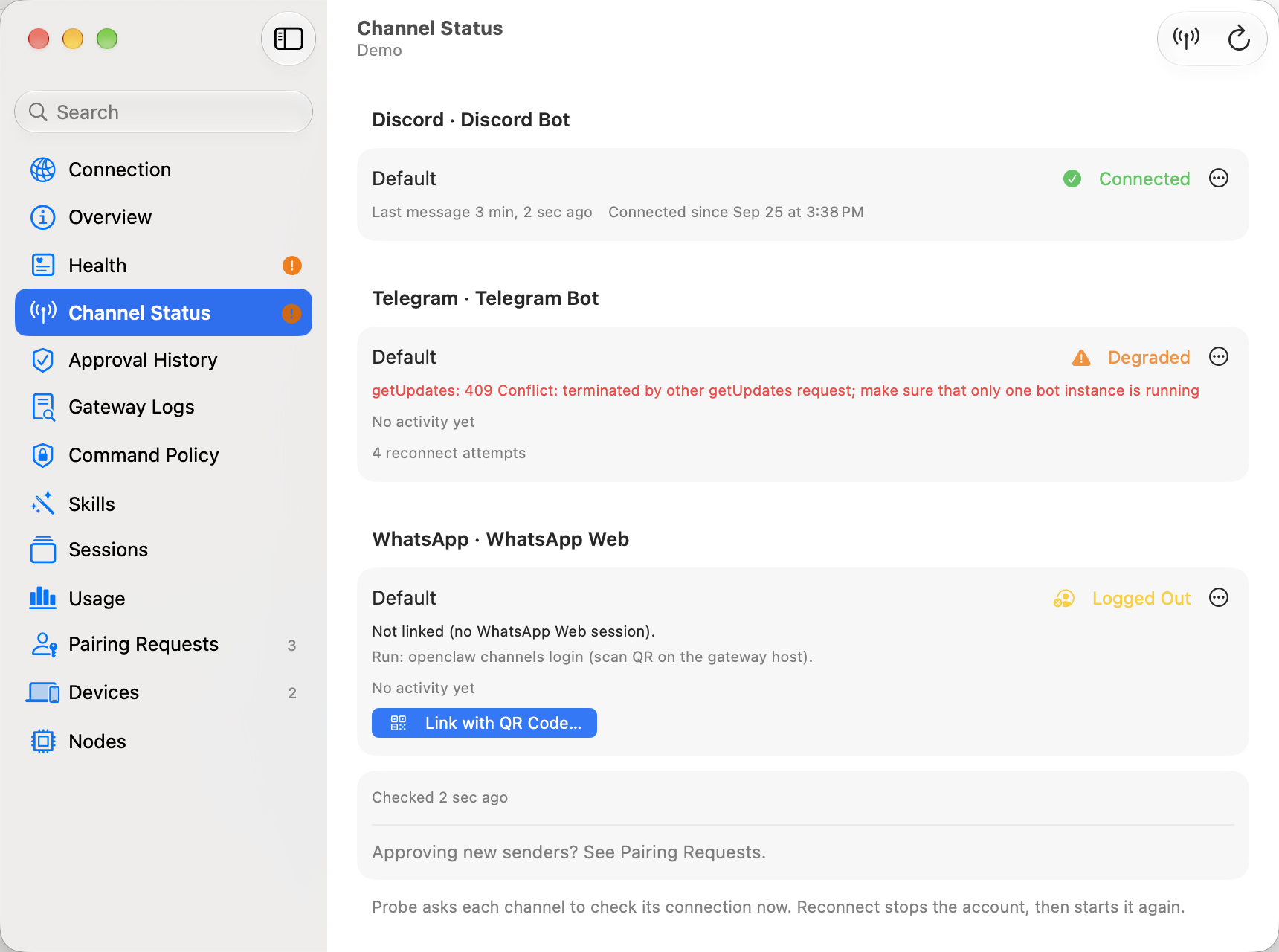
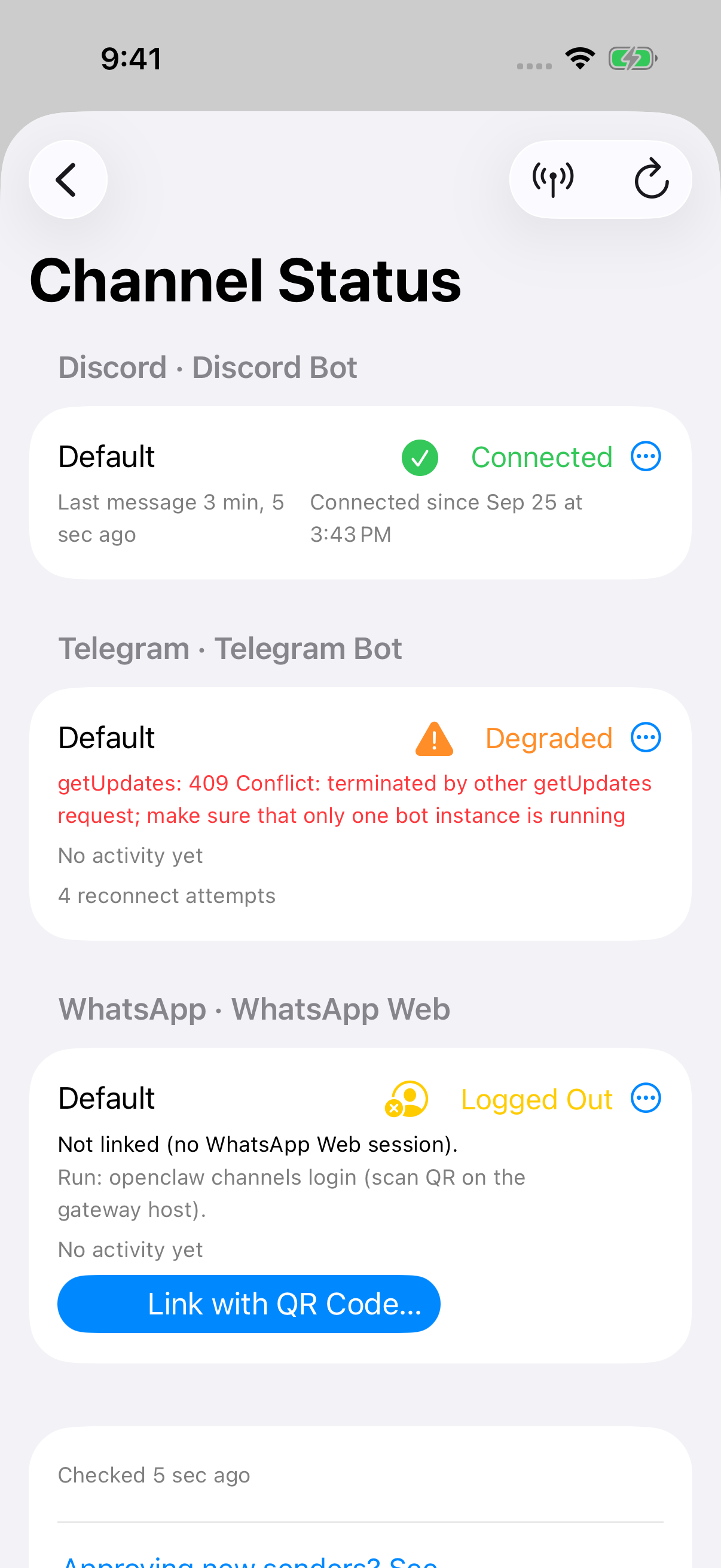
Section titled “What’s on the page”Accounts are grouped by channel. Each one shows its state, its last error if it has one, any problem the gateway reports with a suggested fix, and when it last sent or received a message (“No activity yet” if it hasn’t), since when it’s been connected, when it was last probed, and how many times it has tried to reconnect. Long errors start shortened to two lines. Choose Show More to expand them or Show Less to collapse them; the error text remains selectable while you copy it.
| State | Meaning |
|---|---|
| Connected | The account is running and connected. |
| Running | It’s running, and the channel doesn’t report a connection. |
| Degraded | It’s running but reported an error. The last error says why. |
| Disconnected | It’s running but not connected. |
| Logged Out | It has no saved login. For WhatsApp, link it with a QR code. |
| Stopped | It’s set up and enabled but not running. |
| Not Configured | It’s missing settings it needs. Add them on the Channels settings page. |
| Disabled | It’s turned off in the gateway’s config. |
Every state has an icon and a text label. Logged Out uses the standard text color so its label stays readable in light and dark appearances.
Channels are optional: Pincer talks to your agents directly. If none is set up, the page just says No Channels (with Open Channels Settings); it’s never flagged as a problem. If your gateway doesn’t report channel status, the page says Unavailable on this Gateway and shows the channels from Health, read-only. While Pincer isn’t connected, it shows the last list it had, dimmed.
At the bottom, Approving new senders? See Message Requests. opens Message Requests.
macOS
iOS
Refreshing and probing
Section titled “Refreshing and probing”The page loads when it opens and updates when the gateway reports a health change. While it is showing, Pincer checks every 30 seconds and refreshes only if the last successful status update is at least 30 seconds old. Use Refresh in the toolbar, or pull down on iOS, to refresh now.
A canceled status load or probe keeps the last snapshot and cannot replace a newer read or leave it marked as failed.
Probe asks each channel to check its connection with the service now. It can take several seconds (“Probing channels…”), and anything that fails shows up on the account. If some channels don’t answer in time, the page says so.
Managing an account
Section titled “Managing an account”Use the account’s … button or its context menu. On iPhone and iPad, touch and hold the account, or swipe left for Reconnect and Stop…. With VoiceOver, the actions are in the actions rotor.
| Action | What it does | Asks first |
|---|---|---|
| Reconnect | Stops the account, then starts it again. Often fixes a Degraded or Disconnected account. | No |
| Start | Starts a stopped account. | No |
| Stop… | Asks “Stop Telegram (Default)?”, then stops the account until you start it again or the gateway restarts. Messages to it won’t be answered. | Yes |
| Log Out… | Removes the saved login. To reconnect, scan a QR code again (WhatsApp) or set the account up again. | Yes |
| Link with QR Code… | Links an account that needs login. Relink with QR Code… for one that’s already linked. | No |
While an action runs, the account shows it (“Reconnecting…”) and its other actions wait. Pincer says when it’s done (“Reconnected Telegram.”). If it fails, the reason shows on the account (“Couldn’t reconnect: …”). When the gateway says a channel can’t be started or logged out, Pincer hides that action for the channel from then on.
Linking with a QR code
Section titled “Linking with a QR code”For channels that log in with a QR code, like WhatsApp:
- Choose Link with QR Code… on the account. A sheet opens with “Getting a QR code…”, then the code.
- Scan it with the app on your phone (in WhatsApp: Settings → Linked Devices → Link a Device). If the code changes before you scan it, Pincer shows the new one.
- When the phone is linked, the sheet says Linked, closes and the account refreshes.
Choose Cancel to stop waiting. A late response from that canceled login cannot reopen its error or replace the QR from a newer attempt. If linking fails, the sheet says why and offers Try Again.
Reconnecting from Health
Section titled “Reconnecting from Health”A channel account that isn’t running, isn’t connected or reported an error shows up as an issue on the Health page. Its context menu has:
- Reconnect Account, the same as Reconnect here. For a logged-out account that links with a QR code, like WhatsApp, it’s Link with QR Code… instead, which opens the same QR sheet. On iOS you can also swipe right on the issue, and VoiceOver has it in the actions rotor. Without Full Management it shows as locked, for example Reconnect Account (Needs Full Management). The issue shows “Reconnecting…” while it runs and clears after the refresh if the account comes back. If it’s still failing, the issue stays and says why.
- Show in Channel Status, which opens this page at that account.
In the demo
Section titled “In the demo”The demo has a connected Discord account, a degraded Telegram account with a connection error, and a logged-out WhatsApp account. Every action, including QR linking, is simulated and works with the default access. Telegram’s error clears with Reconnect, and Discord doesn’t support logging out, like a real Discord account.
Current limits
Section titled “Current limits”Gateway restart notices remain safe even when the reported delay is unusually large. Pincer keeps its existing one-to-ten-second wait before showing that it is reconnecting; a shutdown without a restart delay remains a terminal stop.
- Channel Status has been tested against the demo and the mock gateway only.
- The gateway has no channel-specific event, so the page updates on health changes, when it opens and when you refresh.
- Some channels can’t be started or logged out at runtime. Pincer only finds out when the gateway says so, then hides that action.
- Adding a channel account is done on the Channels settings page.
Reactions
Section titled “Reactions”For Telegram, WhatsApp and Signal, the Channels settings page has a Reactions section, “How freely the agent reacts”, per channel and per account. See The agent’s reactions for the levels.
Health also reports incoming messages that failed or are waiting under queue pressure, per channel account. These delivery issues can be dismissed until their counts grow; pressure keeps pending, claimed, and blocked counts separate. The Demo shows both signals on Telegram and clears them after its simulated recovery.
An account action that finishes after the connection is lost cannot restore its old notice or replace a newer action. The Gateway may already have applied the action; reconnecting refreshes its actual status.
 Pincer · MIT License
Pincer is an independent client and isn’t affiliated with the OpenClaw project.