Search messages
Message search looks through the text of every chat Pincer has cached for the selected gateway, including older history you haven’t scrolled to. Picking a result opens the chat with Find in Chat on that exact message.
macOS
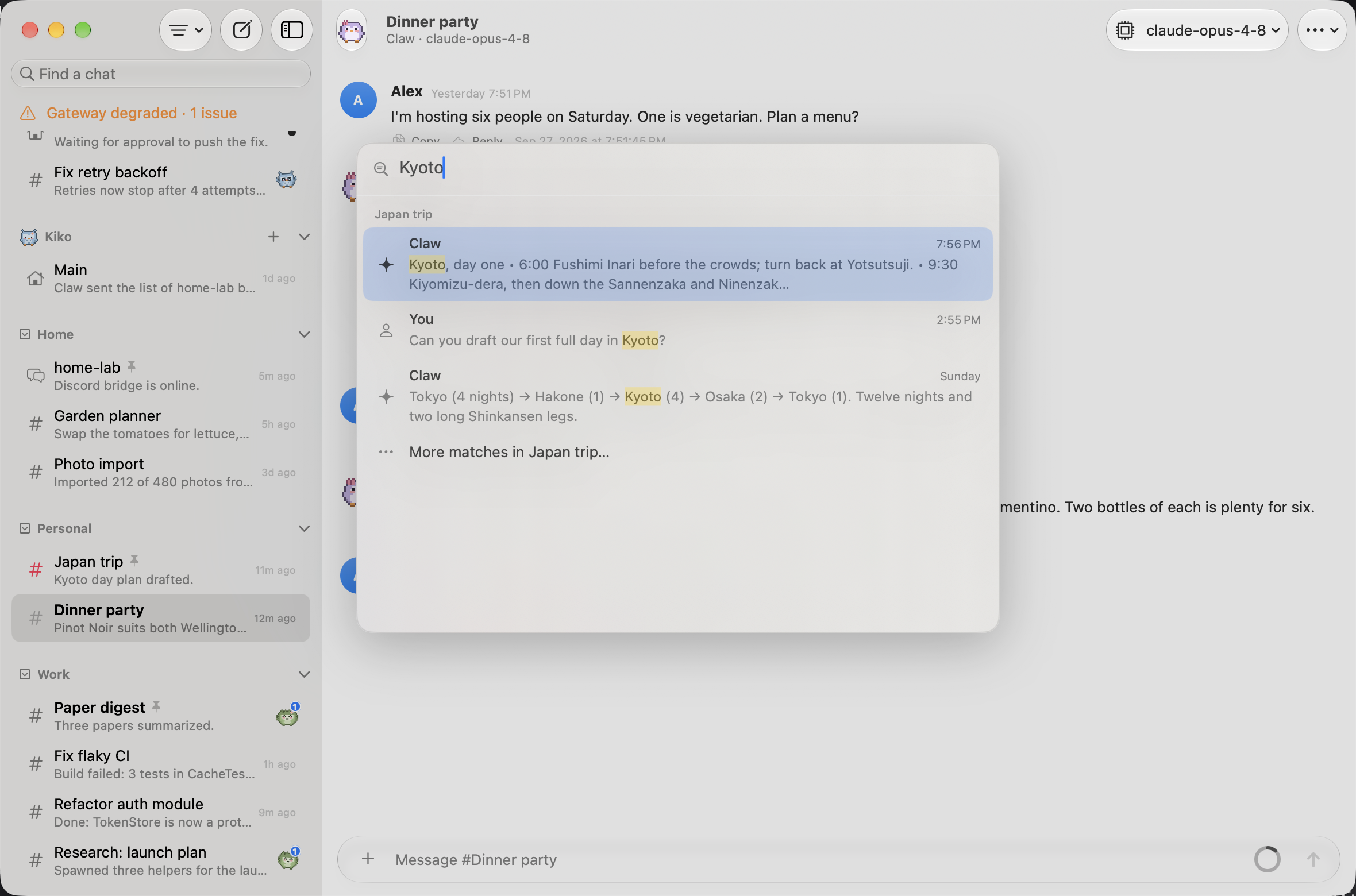
Opening message search
Section titled “Opening message search”There are three ways in:
- ⇧⌘F, or Go → Search Messages…, opens the search straight away. It’s available on macOS and on iPad with a keyboard, whenever a gateway is selected.
- In the ⌘K command palette, type at least two characters and choose Search Messages for “…”. It’s listed after the chats that match, and after any command whose title starts with what you type (typing
dictlists Dictate Message first). When no chat or command title starts with your query, it’s first, so pressing Return on a query that doesn’t name one searches messages. - In the sidebar, type in Find a chat. A Search messages for “…” row appears above the chat list and opens the search with what you typed. This is the way in by touch, on iPhone and iPad.
What matches
Section titled “What matches”- Case and accents are ignored.
cafefinds “Café”, andCAFEfinds “café”. - Each word matches from its start.
tokfinds “Tokyo”, butkyodoesn’t. - Several words must appear together, as a phrase.
japan tripfinds “Japan trip” but not “trip to Japan”. - Queries need at least two characters. Punctuation on its own finds nothing.
Only the text of your messages and the agent’s replies is searched, as the transcript shows it. Thinking, tool calls and their output, attachment names, link targets and messages that haven’t finished sending or streaming are left out.
What’s searched
Section titled “What’s searched”- The selected gateway only. Switch gateways to search another one.
- Chats in the sidebar. Helper (subagent) runs never show up, even when the sidebar lists them. Archived chats show up only while Show Archived (in the Organize menu) is on. Automation and slash-command chats are searched even while the sidebar hides them.
- Cached history only. Pincer caches every chat in the background after connecting (see History and caching). The cache keeps up to the latest 20,000 messages of each chat, so anything older isn’t searched.
New messages become searchable as soon as they’re cached, whether you sent them or they arrived. A message that changes is searched with its new text.
Results
Section titled “Results”Results are grouped by chat, and the chat with the newest match comes first. Each group has:
- a heading with the chat’s title, plus · Archived for an archived chat;
- up to 3 matching messages, newest first. Each shows who sent it (“You”, “via Discord” or the agent’s name), when (the time today, “Yesterday”, the weekday for the days before that up to six days back, otherwise the date, so a message from yesterday says “Yesterday”, just like in the chat) and a couple of lines of text around the match, highlighted the same way Find in Chat does;
- More matches in chat… when the chat has more than 3 matches. It opens the chat with Find in Chat on its newest match.
Results cover up to 30 chats. A very common word may leave out chats whose matches are all older.
Spotlight
Section titled “Spotlight”Pincer can also add your chats to Spotlight on Mac, iPhone and iPad, so you can find a chat without opening Pincer. Choosing a result opens that chat.
- Chat titles are indexed by default.
- The Gateway name appears in each result’s description, so chats with the same title from different Gateways can be told apart.
- Recent message text is added only if you turn on Include Message Text. It comes from the local cache only (up to the last few messages of each chat), never from the gateway.
- Only your 200 most recent chats per gateway are indexed. Archived and deleted chats are removed. Demo chats are never indexed.
In Settings → General, the Search section has two toggles:
| Setting | Default |
|---|---|
| Show Chats in Spotlight | On. Turning it off removes Pincer’s chats from Spotlight. |
| Include Message Text | Off. Available only while Show Chats in Spotlight is on. |
Removing a gateway removes its chats from Spotlight too.
Keyboard
Section titled “Keyboard”| Action | Shortcut |
|---|---|
| Move between results | ↑ ↓ |
| Open the selected result | Return |
| Back to the palette (when you came from ⌘K), otherwise close | Esc |
| Back to the palette, when the field is empty | ⌫ |
The arrow keys skip chat headings and wrap around at the ends. You can also click or tap a result, and pointing at a result selects it.
Jumping to a message
Section titled “Jumping to a message”Opening a result closes the search and opens the chat, even if it isn’t loaded yet. Find in Chat opens with your query filled in and that message’s match selected, scrolled into view and highlighted, with every other match in the chat highlighted too. The find bar shows where you are, such as “3 of 12”, and ⌘ G, ⇧ ⌘ G or Return step through the matches. Find’s own options (thinking and tool output) stay as you left them.
If that message is no longer in the chat, the newest match is selected instead. If nothing matches any more, the find bar says No results.
What you might see
Section titled “What you might see”| Message | Meaning |
|---|---|
| Indexing chats… n of m — results may be incomplete | Pincer is still adding cached chats to the search index, for example the first time after an update. Results so far are shown, and the search runs again when indexing finishes. |
| Type at least 2 characters. | The query is too short. |
| No messages match “…”. | Nothing in the cached chats matches. Check the matching rules. |
| Connect to gateway to search messages. | Pincer hasn’t received the gateway’s chat list yet. Search works once it connects. |
| Message search needs the transcript cache, which is turned off. | PINCER_CACHE_DIR=off is set. Search only covers cached chats. The built-in demo still searches, with its index kept in memory. |
| Message search is unavailable right now. | The search index couldn’t be read. Pincer rebuilds it on its own; try again shortly. |
The search index is stored next to the transcript cache and rebuilds itself when needed. See Local cache and Security & privacy.
Find runs one transcript matcher at a time and keeps only the latest waiting query. Replaced waiting queries cannot publish results; a running matcher finishes before its worker slot is reused. While Find refreshes after a transcript update, Next and Previous keep the match you selected. Inserted rows do not shift your selection to another message; if that match disappears, Find selects a nearby remaining match.
 Pincer · MIT License
Pincer is an independent client and isn’t affiliated with the OpenClaw project.