Skills & tools
Skills teach your agents new tricks, and tools are what they call to act. Pincer shows you both: which skills each agent has and why some can’t be used yet, and which tools a chat is allowed to call before you send anything.
Skills
Section titled “Skills”- In Gateway Settings, choose Skills in the sidebar, below Command Policy. Searching the sidebar for
skillsorclawhubalso finds it. - Press ⌘ K and choose Skills….
Switching agents or clearing feedback dismisses earlier operation messages and warnings. An install already sent to the Gateway still finishes, but its old feedback cannot replace a newer action’s result.
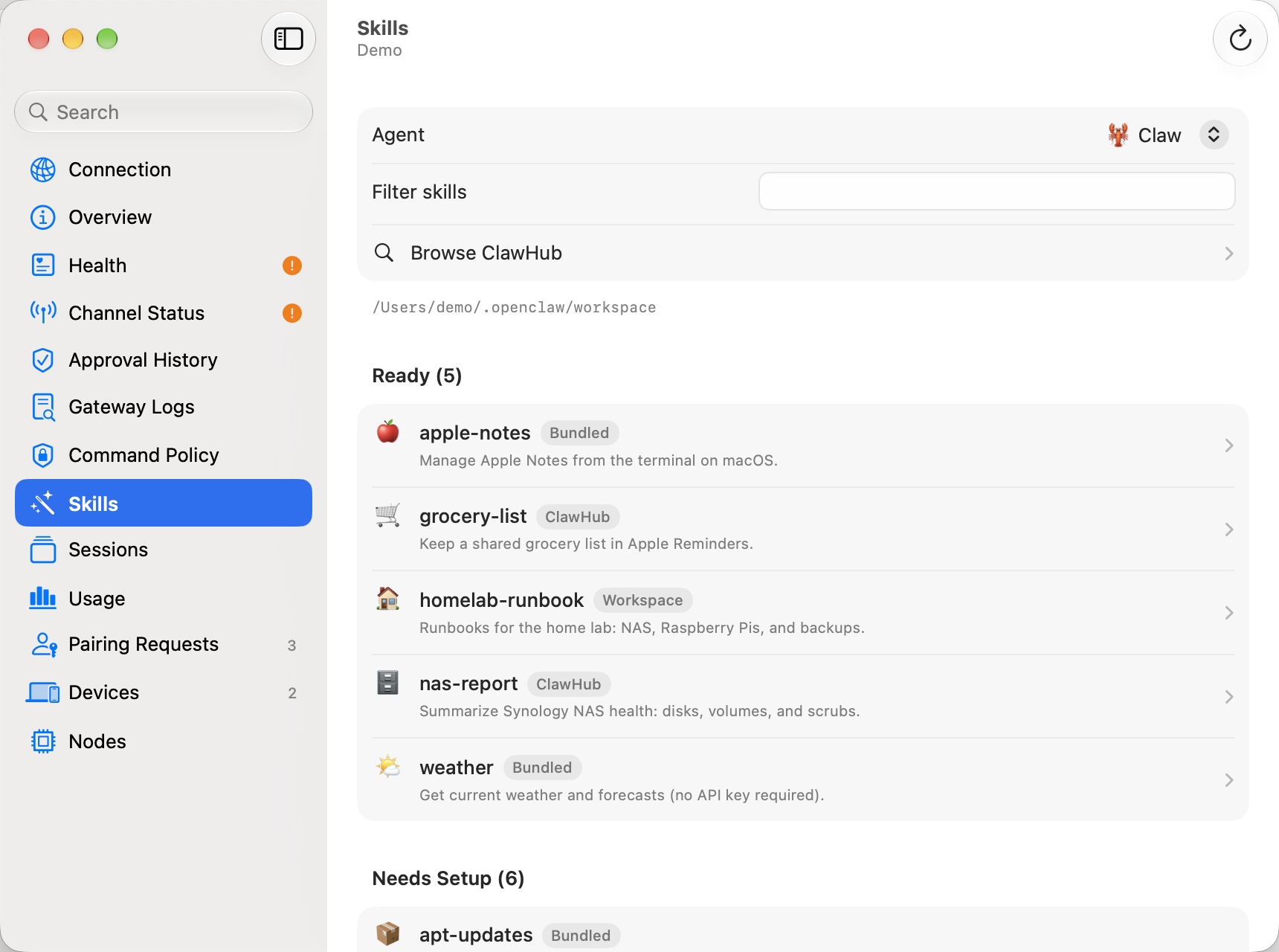
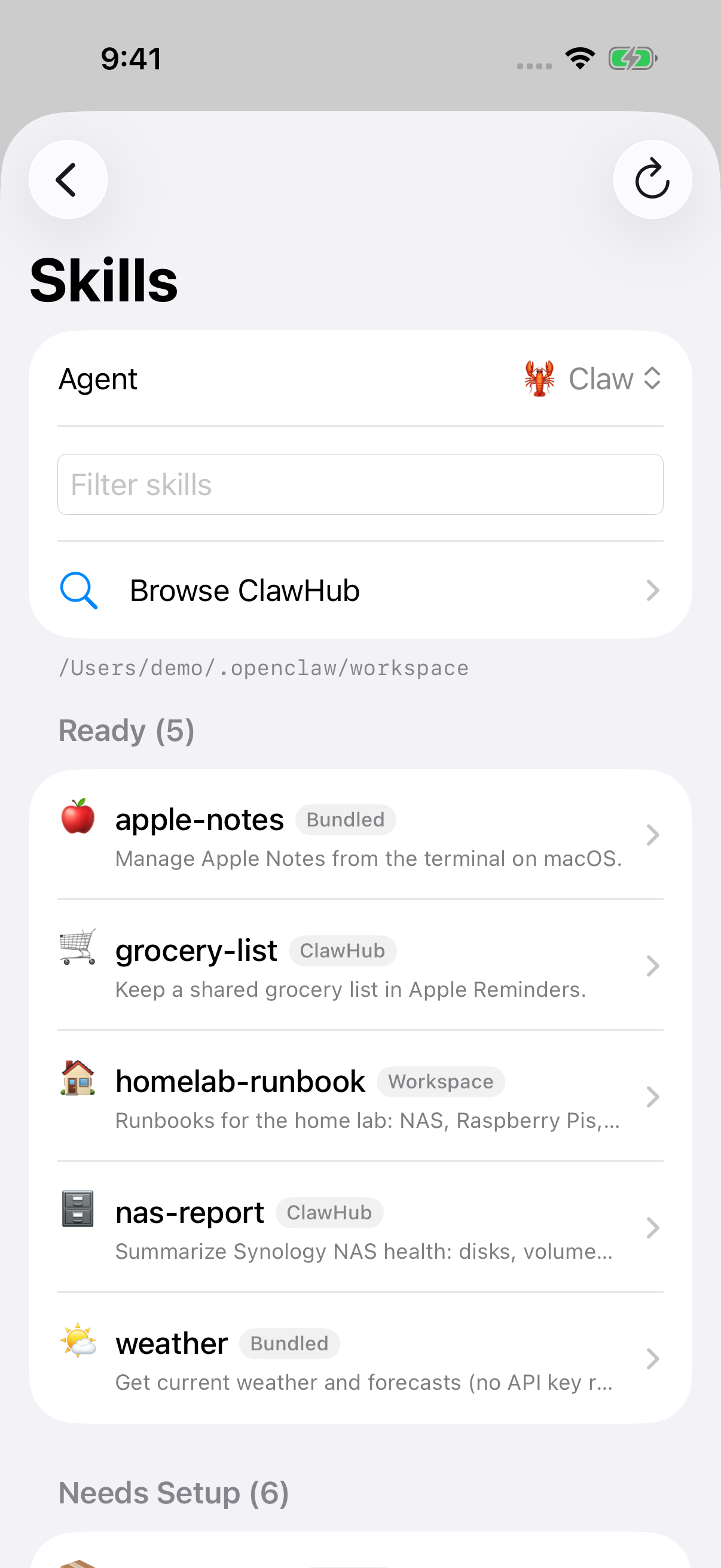
If the gateway has more than one agent, pick one with Agent at the top. Its skills are grouped by state, with a count on each section:
| Section | What it means |
|---|---|
| Ready | The agent can use the skill. |
| Needs Setup | Something the skill needs is missing, such as a program on the gateway host, an environment variable or API key, or a config setting. The row says what. |
| Blocked | The gateway’s policy, such as a skills allowlist, doesn’t let the agent use it. |
| Disabled | The skill is turned off. |
Each row shows where the skill comes from (Bundled with OpenClaw, the agent’s Workspace, Managed, Extra or ClawHub). Type in Filter skills to narrow the list, and Refresh reloads it.
macOS
iOS
Skill details
Section titled “Skill details”Choose a skill for its description, where it’s installed, its version when it came from ClawHub, its homepage, and a Requirements checklist of the programs, environment variables, config settings and platform it needs. Secret values are never shown: Pincer only says whether they’re set.
From the details you can:
- turn Enabled on or off;
- set a new API key or environment variable value under Settings. Saved API keys are never shown. A new key is masked by default; use its eye control to check the draft before saving. On iOS, API-key fields don’t offer Passwords autofill or strong-password suggestions;
- run one of the skill’s Installers, for example to install a missing program on the gateway host. Pincer asks Run installer “name” on the gateway host? first;
- choose Update from ClawHub… for a skill that came from ClawHub. If its files were changed on the gateway since it was installed, Pincer asks again before it replaces them.
Enabled and the Settings values are stored in the gateway’s config (skills.entries), so they apply to every agent, not just the one you picked.
Installing from ClawHub
Section titled “Installing from ClawHub”Choose Browse ClawHub and search by name or topic. Results show each skill’s summary, author and version, and Installed or Update available. Choose one for its details, including what’s new and whether ClawHub has scanned its source. Then choose:
- Install… for a skill you don’t have yet;
- Update… when ClawHub has a newer version. As with Update from ClawHub…, Pincer asks again before it replaces a copy that was changed on the gateway;
- Reinstall… for a skill you already have. Pincer asks Reinstall “name”? first, because it replaces the installed copy, including any changes made on the gateway.
Pincer asks Install “name” from ClawHub? first. The skill is downloaded into the selected agent’s workspace on the gateway host. Skills can run commands and read files with the agent’s permissions, so only install skills you trust. If ClawHub has a warning about the skill, such as a source it hasn’t scanned, Pincer shows it in orange under the result.
Effective tools
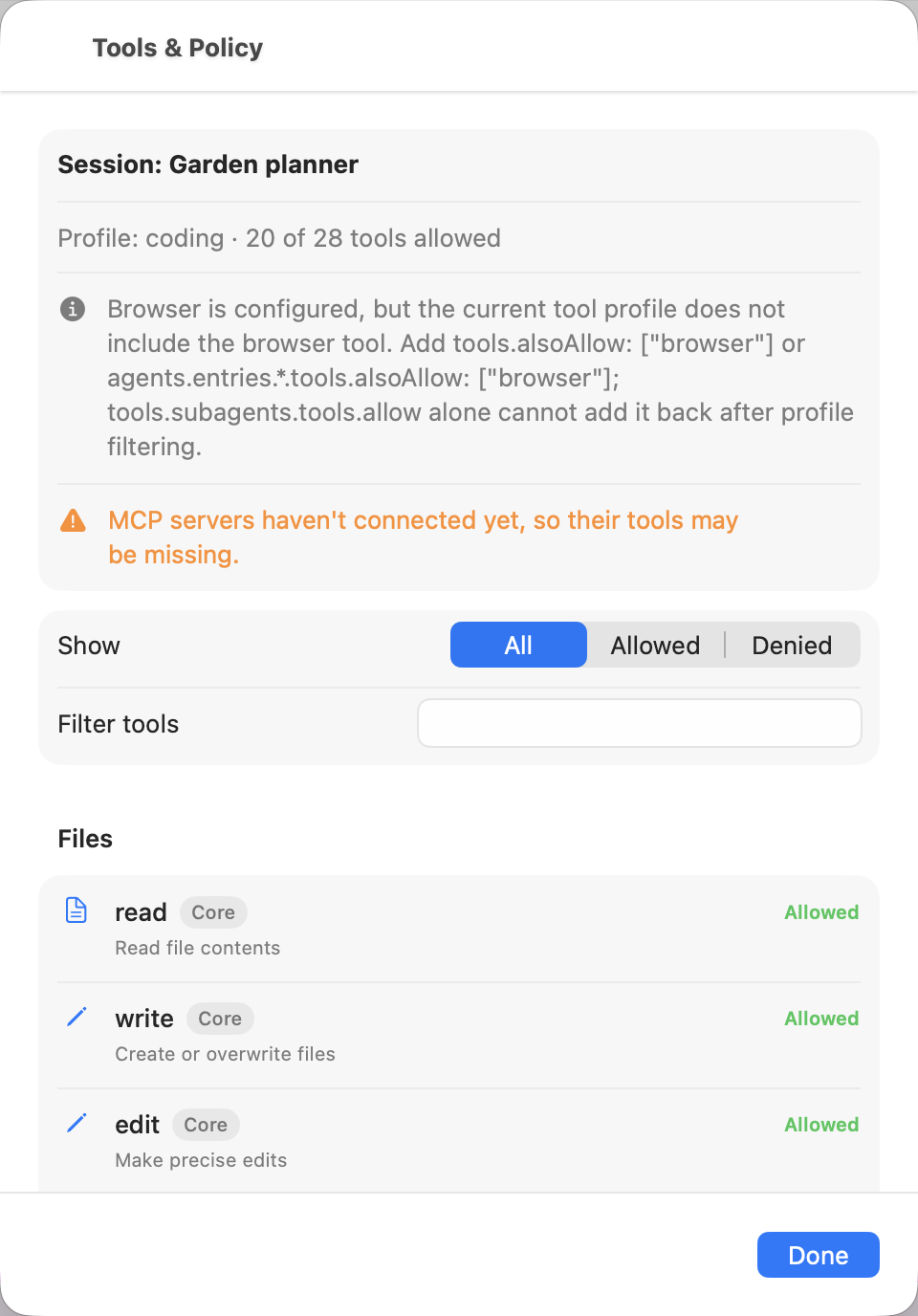
Section titled “Effective tools”The tools inspector shows every tool a chat or agent could call, and whether its tool policy allows it. Use it to check what an agent can do before you start a run.
- For a chat: open the chat’s ⋯ (Session) menu and choose Tools & Policy…. This works in a new chat before you’ve sent anything.
- For an agent: in Gateway Settings, choose Agents & Models, open the agent, and choose Tools. Pincer uses the agent’s main chat (or its most recent one) for the live policy, and says which, for example “Live policy from “Main”.” If the agent has no chats yet, it shows what the agent’s tool profile allows by default.
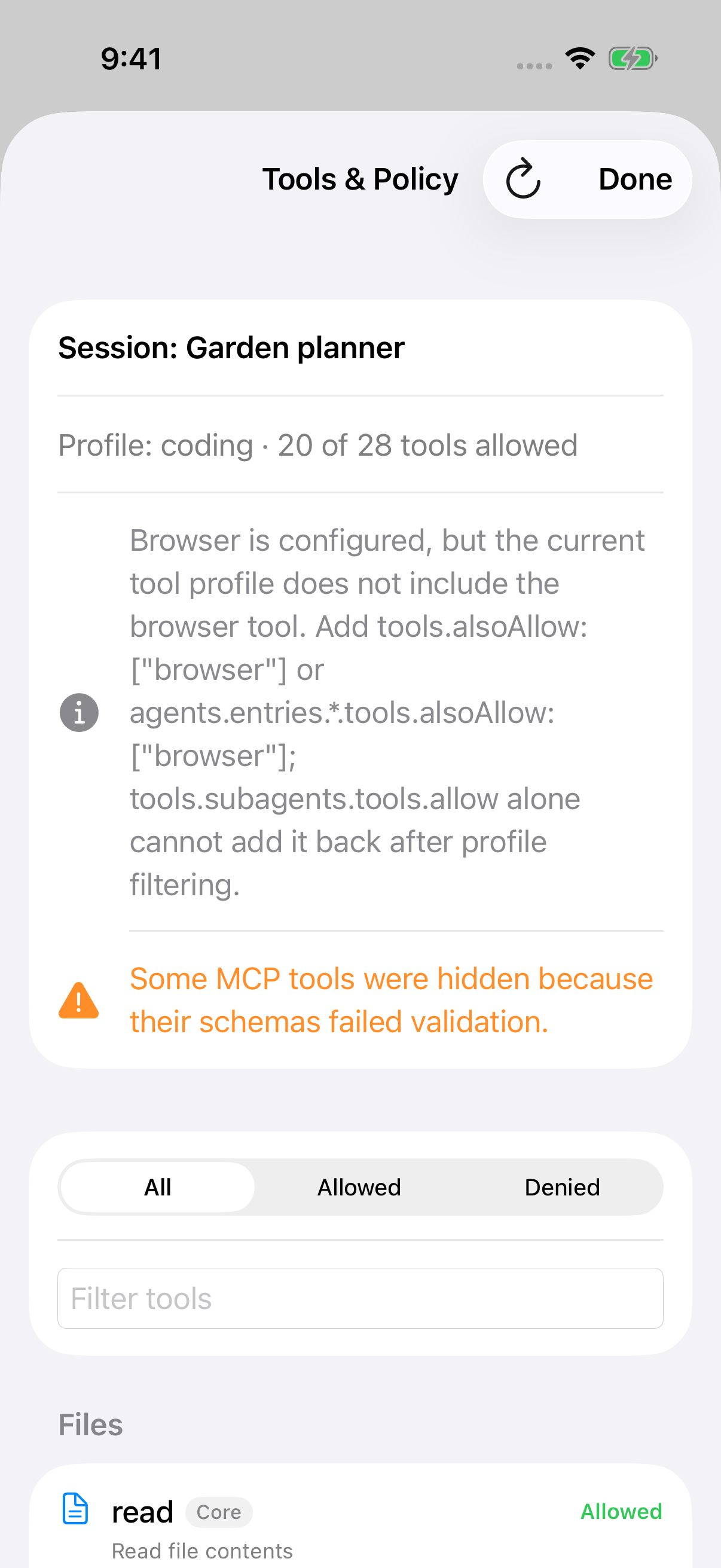
Tools are grouped the way the gateway groups them. Each row shows the tool, where it comes from (core, a plugin, a channel or an MCP server) and Allowed or Denied, with the reason, such as the tool profile or a tools.deny rule. Use Show to pick All, Allowed or Denied, or type in Filter tools. A summary at the top gives the profile and how many tools are allowed.
A chat’s list is the gateway’s preview for that chat’s saved settings. If MCP servers haven’t connected or listed their tools yet, Pincer says so, and their tools may be missing until they do.
The inspector is read-only and needs only operator.read. To add, edit or sign in to MCP servers, see MCP Servers. To change tool policy, choose Tool Settings… to open the Tools & Skills settings page. If your gateway’s config has no such page, the button is Raw Config… instead.
macOS
iOS
Older gateways
Section titled “Older gateways”Pincer only shows what your gateway supports. If it doesn’t offer skills (skills.status), there’s no Skills page. Without ClawHub search (skills.search), there’s no Browse ClawHub, and without skills.install or skills.update those buttons are hidden. Without tools.effective or tools.catalog, the chat’s Tools & Policy… and the agent’s Tools don’t appear. Update OpenClaw to get them.
In the demo
Section titled “In the demo”The demo has sample skills in every state, including one that needs a program, one that needs an API key, a blocked one, a disabled one and a ClawHub skill with an update. ClawHub search returns a few sample results, and installing or updating works without touching a real gateway. The tools inspector shows a sample policy with allowed and denied tools from core, a plugin and an MCP server.
A canceled Skills refresh keeps the last completed report and cannot replace a newer agent selection or revive its cleared feedback.
The tools inspector prepares search results in the background while you type. It preserves complete label, identifier and description matching; changing the query or refreshing the inventory prevents older results from replacing the current matches.
 Pincer · MIT License
Pincer is an independent client and isn’t affiliated with the OpenClaw project.