Subagents & run timeline
When an agent delegates work, it spawns helper (subagent) runs, and those can spawn helpers of their own. Helpers stay out of the sidebar by default, so the Runs panel is where you see them: a tree of everything the chat started, with live status, and a timeline of what each run did.
Opening the Runs panel
Section titled “Opening the Runs panel”Open a chat, then:
- click Runs in the chat toolbar, or choose Show Runs from the chat’s ⋯ menu;
- on macOS, press ⌥⌘R.
The button appears when the chat has started a helper run or has run activity of its own, and it stays while the panel is open. While helpers are working, the button shows a red count badge and its VoiceOver label says how many are running. On compact iPhone, the badge keeps activity visible in the glass toolbar even when tint or symbol animation is subdued.
The agent’s live browser has its own panel in the same slot: see Browser panel.
The chat’s ⋯ menu only shows Show Runs when that chat has helper or captured run activity. If the Runs panel is already open, Hide Runs remains available while you switch chats.
On iPhone the chat’s toolbar is short on room, so the Runs button only shows while a helper is running. The rest of the time, choose Show Runs from the chat’s ⋯ menu.
- Mac: the panel opens as an inspector on the right side of the window. You can resize it, and it stays open when you switch chats.
- iPad: it’s an inspector in regular width and a sheet in compact width, like Split View.
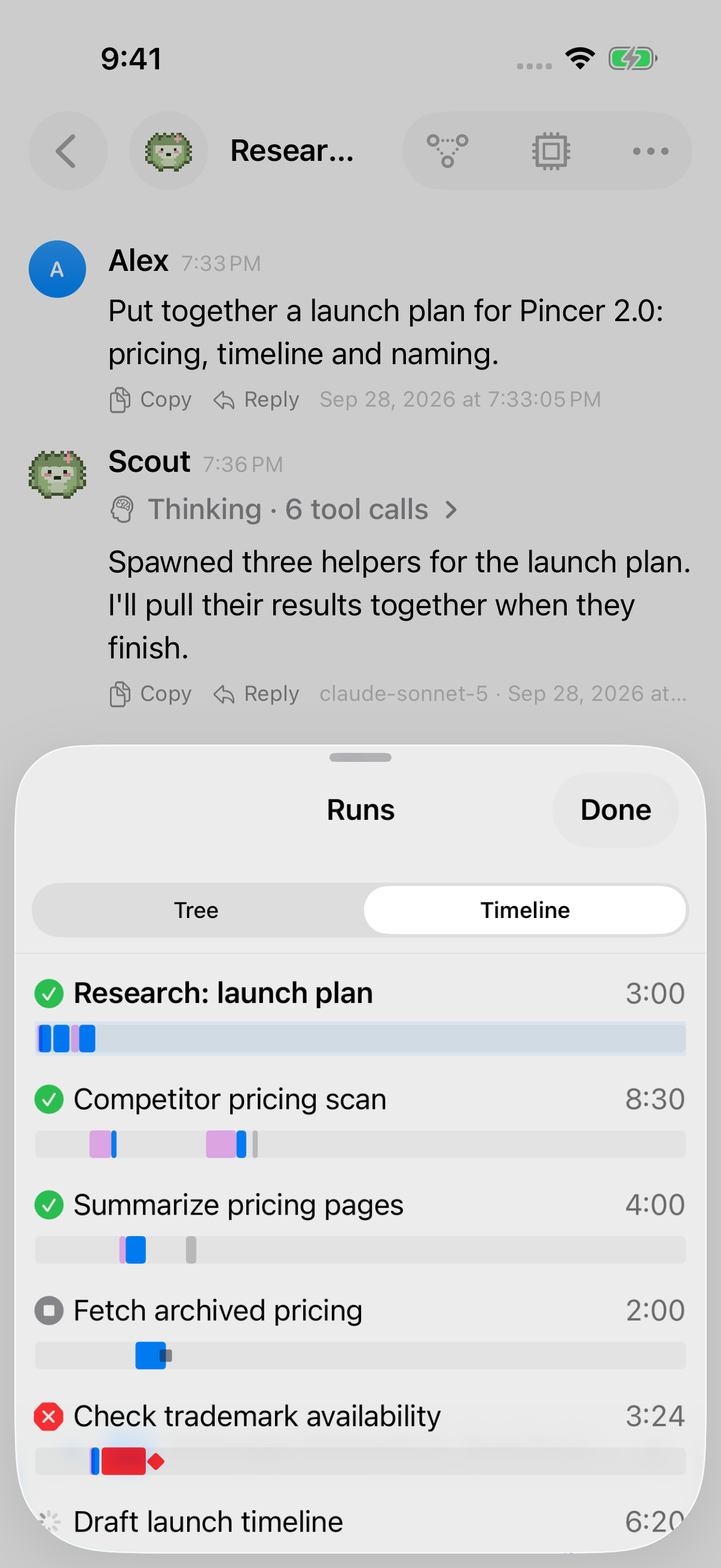
- iPhone: it’s a sheet titled Runs. Drag it to half or full height, and tap Done to close it.
At the top of the panel, switch between Tree and Timeline.
macOS
iOS
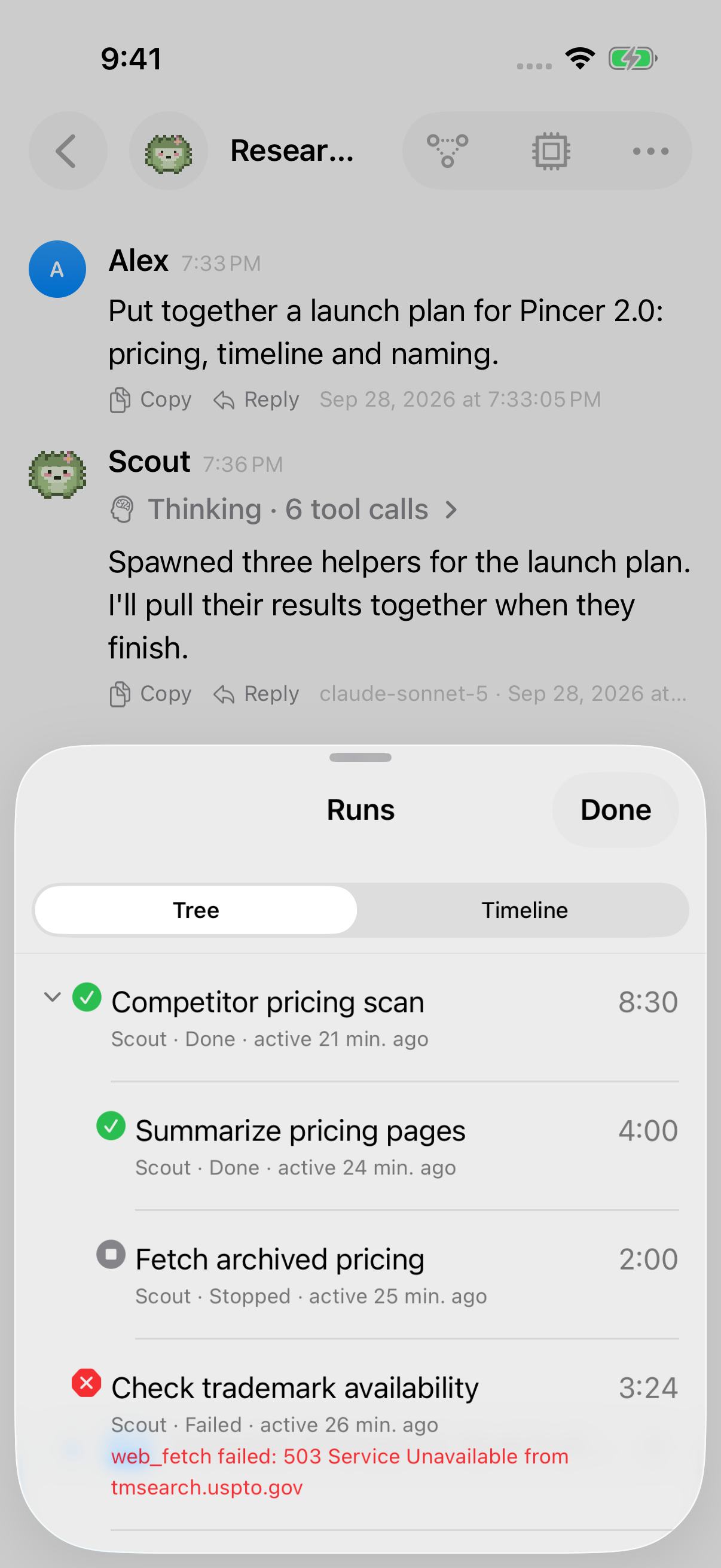
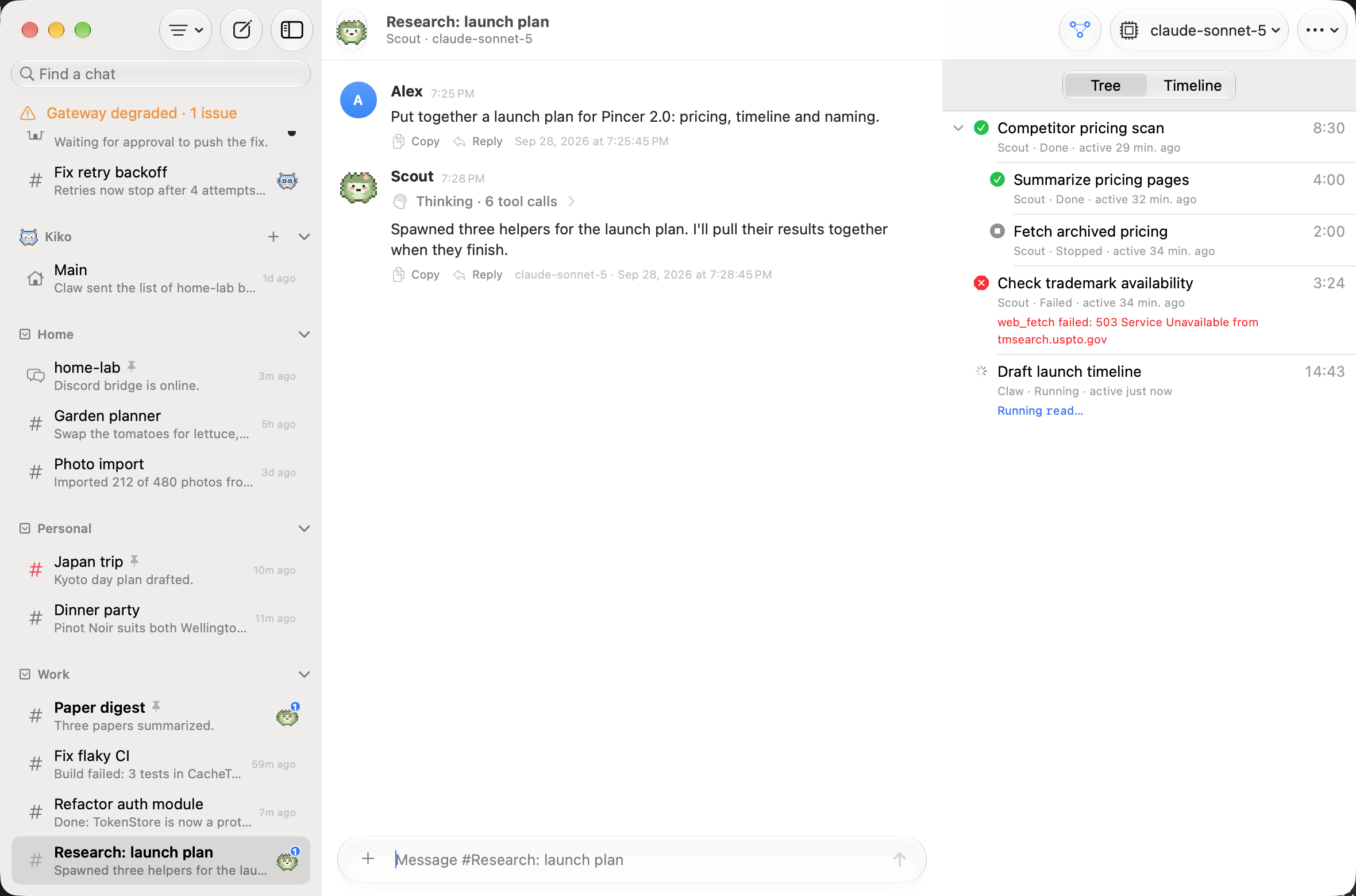
Subagent tree
Section titled “Subagent tree”The tree starts at the current chat. Below it are the helpers it spawned, then their helpers, however deep the tree goes. The tree follows each session’s spawnedBy / parentSessionKey. Children are sorted oldest first, and you can collapse any branch.
Each row shows:
- a status symbol and label;
- the run’s title (its label, or the agent’s name if it has none) and its agent, in the agent’s color;
- the duration;
- the last activity, like “2m ago”. While a helper is running, a caption shows what it’s doing right now, for example “Running
web.search…”.
| Status | Symbol | Meaning |
|---|---|---|
| Running | spinner | The run is still going. Its duration counts up live. |
| Done | green ✓ | The run finished normally. |
| Failed | red ✕ | The run failed, timed out or was interrupted. |
| Stopped | gray ■ | The run was stopped (killed or aborted) before it finished. |
| Unknown | gray ? | Pincer is disconnected, so it can’t tell whether the run is still going. |
| Idle | dotted circle | The session hasn’t run anything yet. |
Durations show as m:ss, h:mm:ss for an hour or longer, and <1s for very short runs. Very large finite durations are bounded before display so an unusual timestamp cannot crash the Runs panel. Last activity is the most recent thing the run streamed: thinking, a reply or a tool call starting or finishing. For a run Pincer hasn’t seen stream, it falls back to the session’s last update.
Opening a helper
Section titled “Opening a helper”- Mac: click a row to select it, then double-click it or press Return to open that helper’s chat.
- iPhone and iPad: tap the row.
This does the same thing as the Open run button on a tool card. The helper opens even when the sidebar is set to hide helpers, and the setting doesn’t change.
The panel stays open and moves to the helper you opened. Use Parent: … at the top of the tree to go back up a level.
Control-click or touch and hold a row for:
- Open: open the helper’s chat.
- Show Timeline: switch to the timeline and highlight that helper’s latest run.
- Copy Session Key.
Run timeline
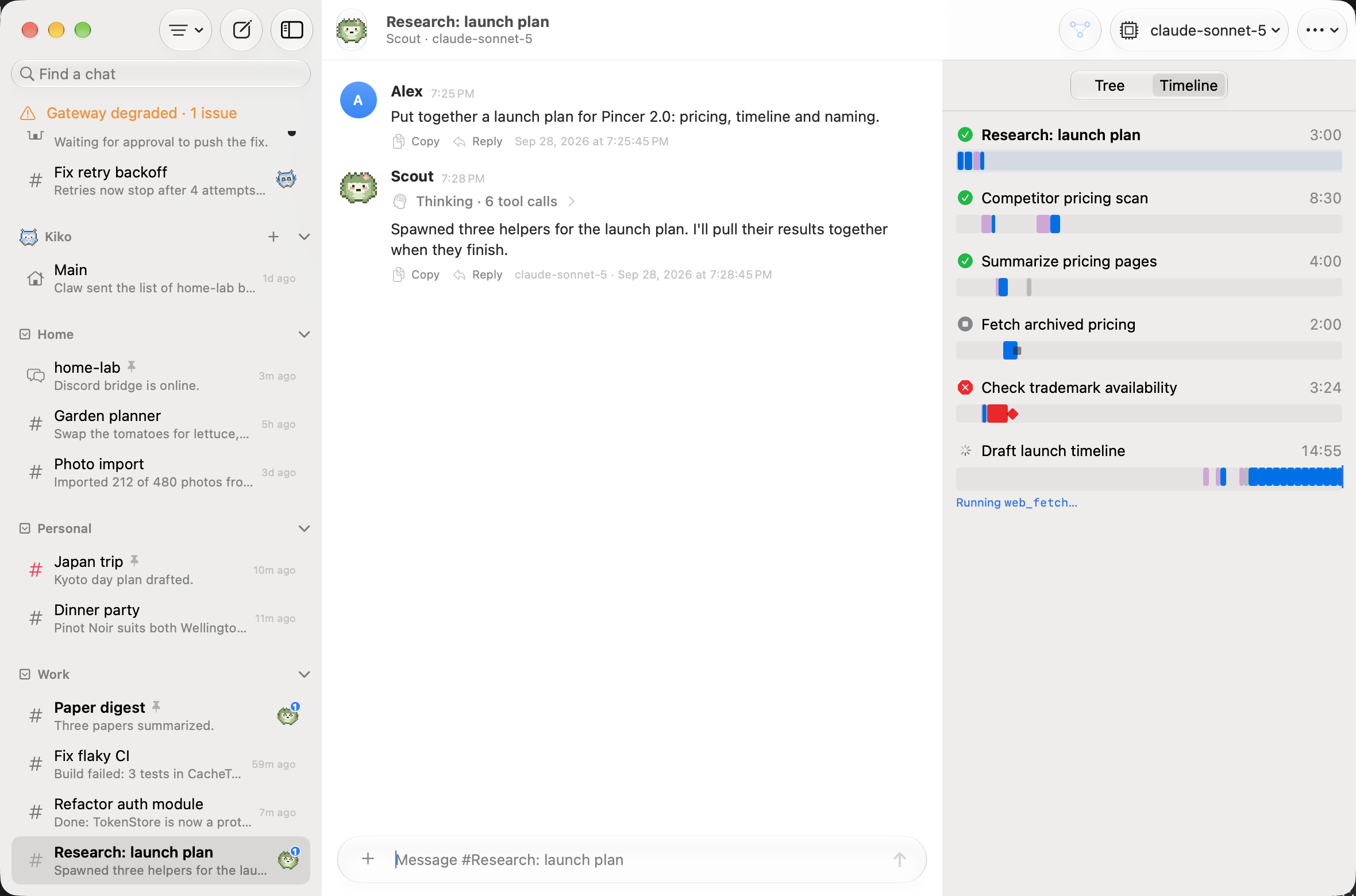
Section titled “Run timeline”The timeline has one lane per run: the chat’s own runs first, then each helper’s, in tree order. All lanes share a time axis running left to right, so you can see which helpers ran in parallel and which one held things up. Each lane is labeled with its run’s name and status, and shows its total duration on the right.
A lane is made of:
- Thinking: light purple segments.
- Tool calls: blue bars labeled with the tool’s name. A tool call that failed turns red.
- Replies: gray segments where the agent was writing text.
- Compaction: orange segments while the gateway compacted the chat’s context.
- Errors: a red ◆ marker where the run hit an error.
- Abort: a gray ■ marker where the run was stopped.
While a run is live, its lane grows up to a “now” line and a caption below it says what the run is doing. When a run has more steps than the timeline keeps, the oldest are dropped and the lane says how many.
The timeline starts at the chat’s latest run. Use Show Timeline on a tree row to jump to a helper’s run instead; the highlighted lane is shown in bold.
Hover over a segment on the Mac to see its name, when it started, how long it took and, for errors, the first line of the message. Click or tap a segment to show the same details under the lane, where you can select and copy them. Steps too short to see on their own are merged into one bar, like “web.search + 3 more”.
To open a run’s chat from the timeline, double-click its lane header on the Mac or tap it on iPhone and iPad. You can also Control-click or touch and hold the header and choose Open. With VoiceOver, use the Open action. This works on “Activity not captured” rows too.
The timeline is built from the activity the gateway streams while Pincer is connected. It keeps the 50 most recent runs. A helper with no captured run shows Activity not captured — only live runs are recorded, with its total duration taken from the session when the gateway provides it.
macOS
iOS
When there’s nothing to show
Section titled “When there’s nothing to show”- A chat that hasn’t delegated anything shows No helper runs yet in the tree. When the agent spawns a helper, it appears right away.
- If Pincer hasn’t seen any runs stream for the chat or its helpers, the timeline shows No runs captured yet.
- If you lose the connection to the gateway, the panel keeps the last state it saw and marks running helpers and lanes Unknown. Their lanes stop at their last event until you’re back online.
- If Pincer missed the end of a run, for example during a reconnect, the lane ends once the gateway reports the session is no longer running.
Accessibility
Section titled “Accessibility”Every status comes with a label as well as a color. VoiceOver reads each tree row as its title, agent, status, duration and last activity, and each timeline segment is its own element.
Try it in the demo
Section titled “Try it in the demo”The demo gateway includes a research chat that has already spawned three helpers:
- one finished and started a helper of its own, so the tree is two levels deep;
- one is still running and keeps making tool calls, so you can watch its timer and lane grow;
- one failed on a tool error.
There’s also a stopped run, so every status appears, and the chat’s own lane has thinking, several tool calls and a spawn for each helper.
Related
Section titled “Related”- Organizing chats: list helpers in the sidebar instead.
- Transcript: the Open run button on tool cards.
 Pincer · MIT License
Pincer is an independent client and isn’t affiliated with the OpenClaw project.