Operator Devices & Nodes
Every app that connects to your gateway, such as Pincer on each Mac, iPhone and iPad, the Control UI, the openclaw CLI on another machine, or a node app, is a device with its own key. The gateway has to approve each one before it can connect. Devices in Gateway Settings lists the devices waiting for approval and the ones already paired, so you can manage them without running openclaw devices on the gateway host.
Operator Devices is different from Message Requests, which lets in people who message your agents on a channel. See Gateway Settings → Message Requests.
Opening Operator Devices
Section titled “Opening Operator Devices”In Gateway Settings, choose Operator Devices in the sidebar, under People & Devices (it was called Devices before). The badge on the row shows how many devices are waiting for approval. The list updates on its own when a device asks to pair or a request is answered elsewhere (device.pair.requested, device.pair.resolved), and after each change you make. Refresh reloads it.
What’s listed
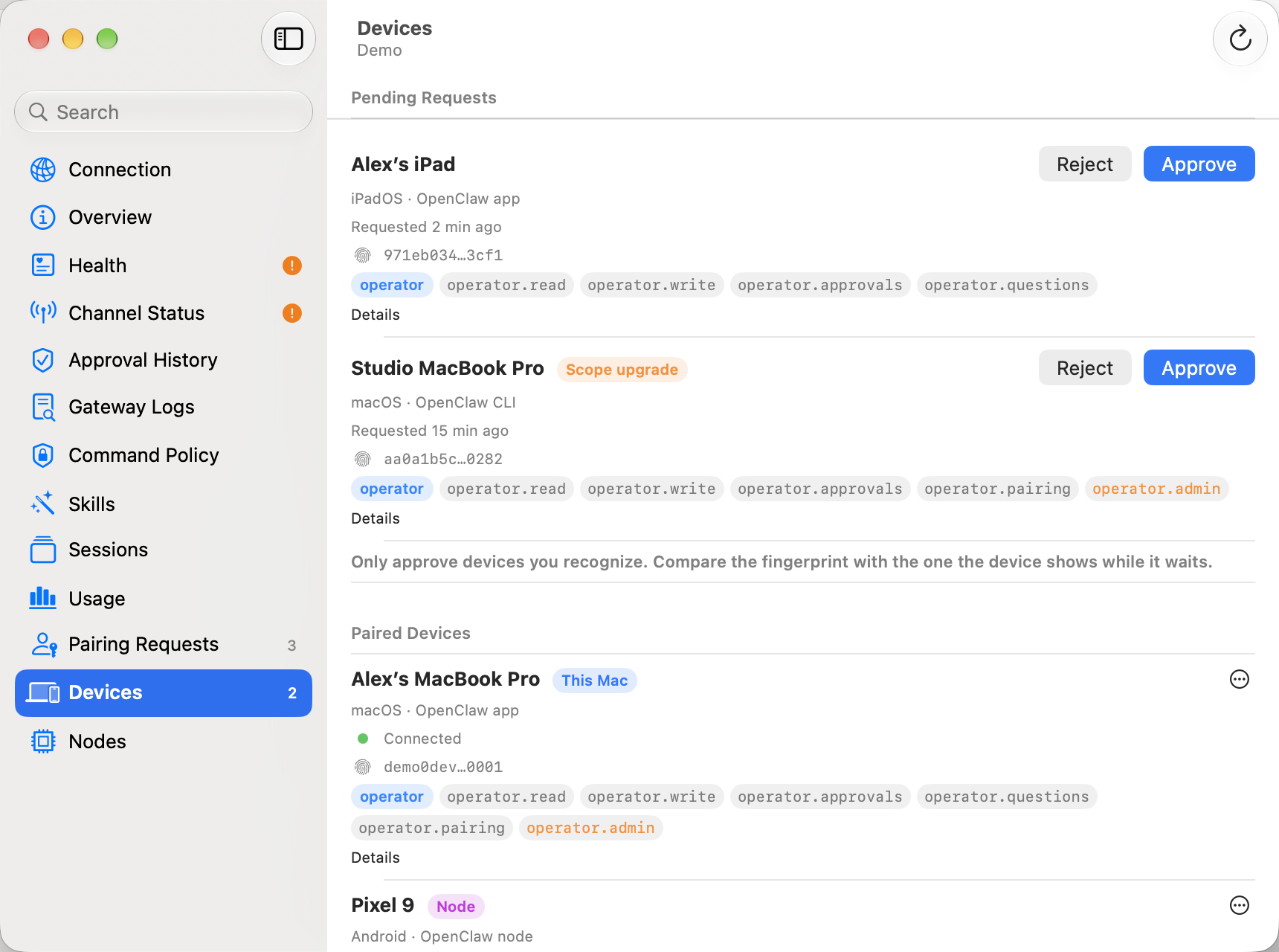
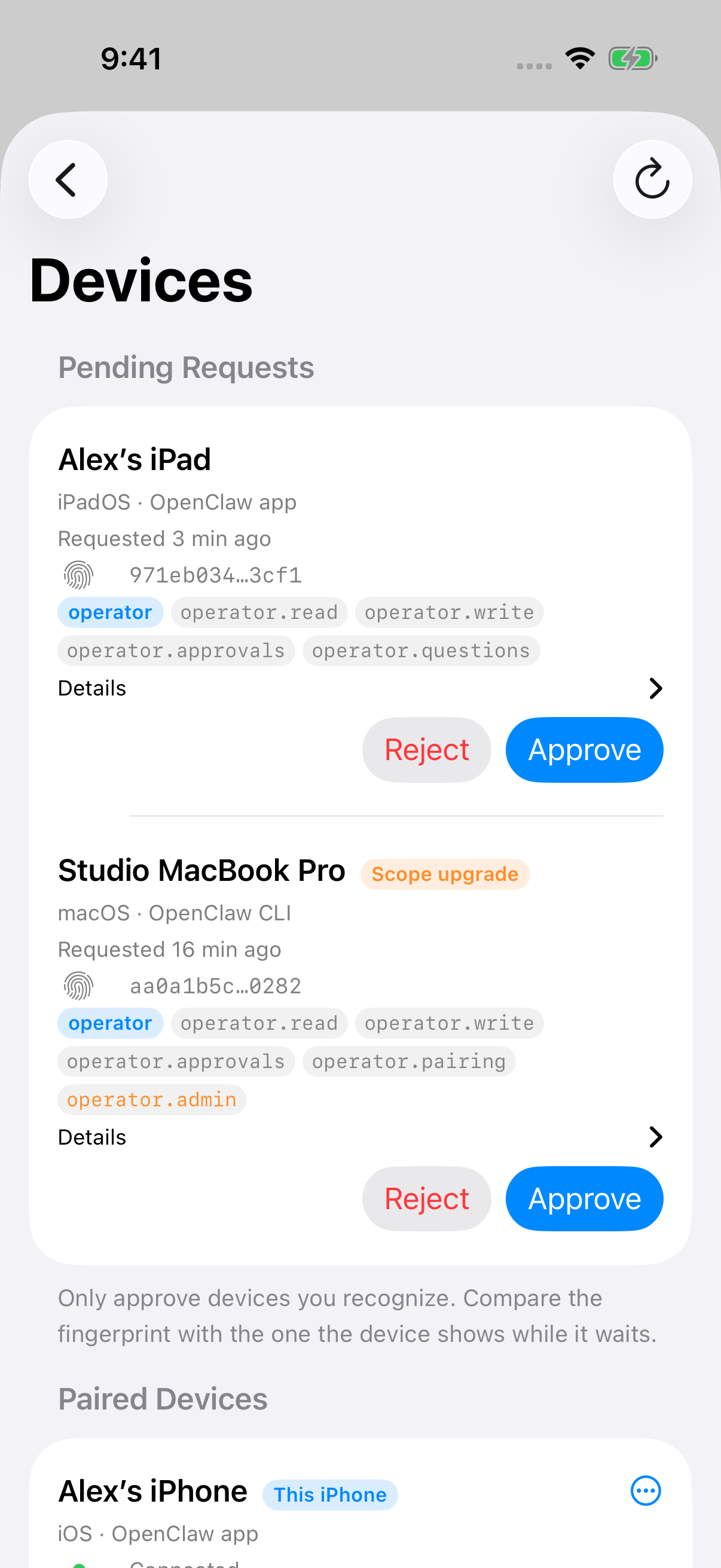
Section titled “What’s listed”Pending Requests comes first, newest first, then Paired Devices, with the device Pincer is using at the top. Each device shows:
| Name | The name the device gave, or its client and platform. |
| Platform and client | For example macOS · Pincer. |
| Fingerprint | A short form of the device id. Hover over it for the full id, or use Copy Device ID in the context menu. |
| Role and scopes | The role (operator or node) and the scopes it has or asks for, such as operator.read or operator.admin. |
| Status | Connected, Last seen for paired devices, or Requested for waiting ones. |
The device Pincer itself connects with is tagged This Mac, This iPhone or This iPad. A request from a device that’s already paired and asks for more access, for example after you switch it to Full Management, is tagged Scope upgrade. A request that asks for the node role says so, since approving it lets agents run commands on that device.
macOS
iOS
Approving and rejecting
Section titled “Approving and rejecting”Only approve devices you recognize, and compare the fingerprint with the one the device shows while it waits. Names come from the device and aren’t verified.
- Approve pairs the device with the role and scopes it asked for. It can connect straight away.
- Reject turns the request down. The device can ask again.
Renaming and revoking
Section titled “Renaming and revoking”From a paired device’s Actions menu (or its context menu):
- Rename… changes the name every operator of the gateway sees (
device.pair.rename, on gateways that support it). - Revoke… asks first, then removes the device from the gateway and disconnects it (
device.pair.remove). To use it again, it has to pair again.
Revoking the device Pincer is using (Revoke This Device…) disconnects Pincer from that gateway. Pincer warns you first, since it can’t approve its own new request: approve it from another device paired with Full Management, or run openclaw devices approve on the gateway host.
Access
Section titled “Access”Approve, Reject and Revoke are available when the connection already has operator.pairing or Full Management, and the Gateway advertises the corresponding method. Pincer does not request any additional scopes for these actions. The Gateway remains responsible for device ownership, roles and approved token scopes; it can reject an action even when the button is available. On a pairing-only connection, a rejection stays on that device or request, so you can retry or use another permitted action. Connections authenticated with a non-admin device token may only see their own device. Rename and node management still require Full Management in Pincer. Gateways that do not support device pairing say so.
The first device
Section titled “The first device”Pincer can’t approve its own first pairing: until a device is approved, it can’t connect to see the request. So the first time you connect a gateway, approve it on the gateway host:
openclaw devices listopenclaw devices approve <requestId>After that, a Mac, iPhone or iPad paired with Full Management can approve your other devices from Operator Devices. See Connect a gateway.
Nodes, under Security in the sidebar, lists the nodes known to the gateway: Macs, phones and servers that run commands for your agents, such as the OpenClaw apps for macOS, iOS and Android (node.list). Each shows its name, platform, version, whether it’s connected, or when it was last seen, and tags such as Gateway Host. With Full Management you can Rename… a node (node.rename). Nodes can’t be removed from Pincer yet. New nodes are approved on the Devices page.
Pincer connects as an operator. It appears here as a node only if you turn on device mode for this gateway.
In the demo
Section titled “In the demo”The demo has pending device requests, a few paired devices including this one, and two nodes. Approving, rejecting, renaming and revoking work, and nothing leaves the device.
Canceling a device-list refresh does not displace another active read or publish its late result or error. Existing pairing and removal actions keep their normal behavior.
 Pincer · MIT License
Pincer is an independent client and isn’t affiliated with the OpenClaw project.