Gateway Logs
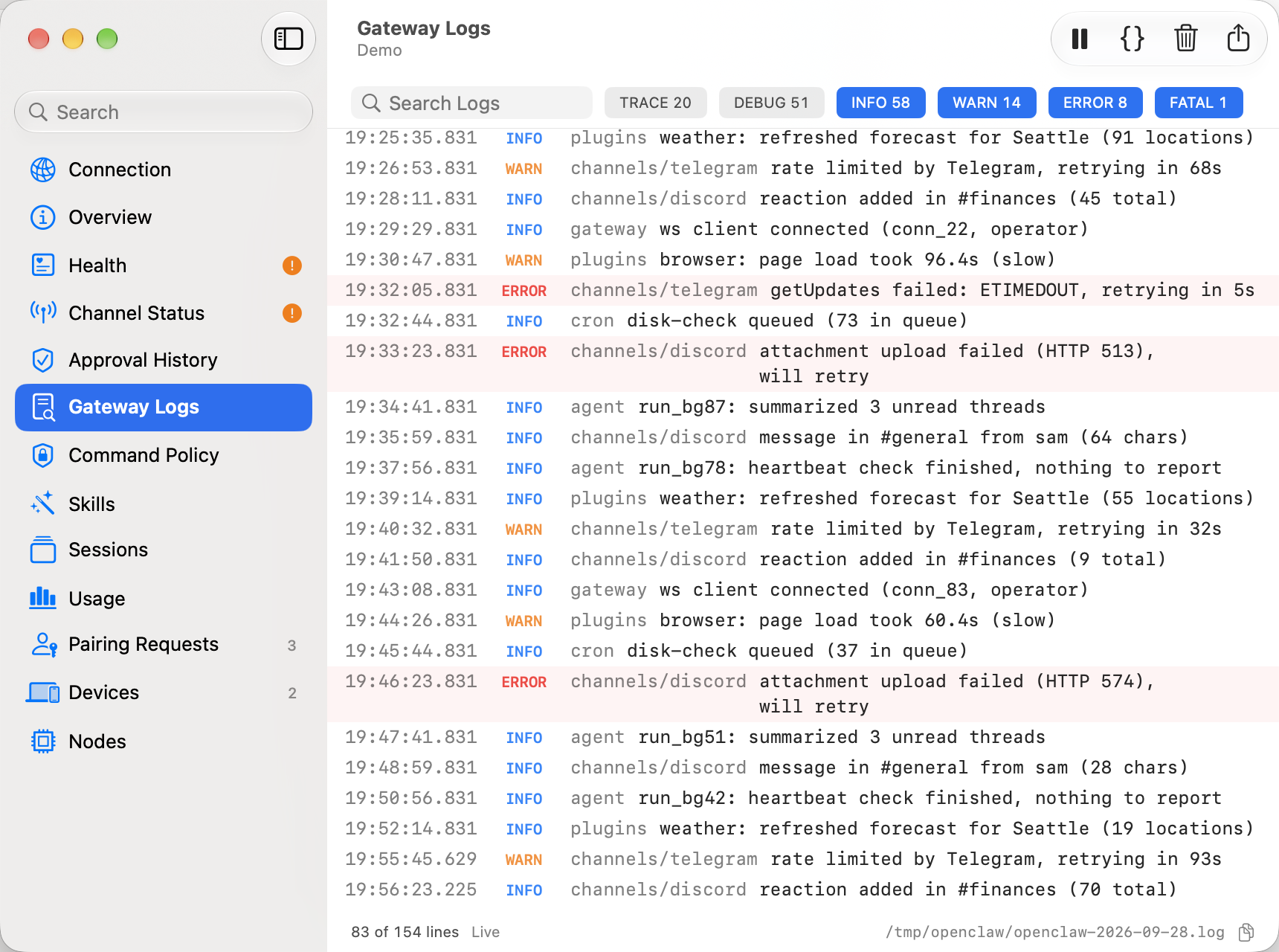
Gateway Logs shows a live tail of your gateway’s own log file, like running openclaw logs --follow on the gateway host. It’s useful when a channel stops answering, a plugin misbehaves or an automation fails.
Opening Gateway Logs
Section titled “Opening Gateway Logs”- In Gateway Settings, choose Gateway Logs in the sidebar.
- Press ⌘ K and choose Gateway Logs….
On macOS it’s a page in the Gateway Settings window; on iOS it opens inside the Gateway Settings sheet.
macOS
Reading the log
Section titled “Reading the log”Each line shows its time, level, subsystem (such as gateway, channels/discord or cron) and message. Errors and fatal lines are tinted so they stand out. Hover over a time on macOS for the full timestamp. Lines that aren’t structured (plain text a plugin printed, for example) are shown as they are, without color codes. Very long messages are shortened on screen; copying and exporting keep the full text.
The list follows new lines as they arrive. Scroll up to read older lines and it stops following; Jump to Latest (with how many new lines have arrived) takes you back to the bottom.
Show Raw shows each line exactly as the gateway wrote it, usually JSON.
The bar at the bottom shows how many lines are showing, whether the log is live or paused, and the log file’s path on the gateway host, with a button to copy it.
Filtering
Section titled “Filtering”- Levels: turn levels on or off, each with how many of its lines are loaded. On macOS the level buttons are above the log; on iOS they’re in the Levels menu. Trace and Debug are off by default. Lines without a level are always shown. Your choice is remembered on this device.
- Search: type to show only lines that contain the text, in the message, the subsystem or the raw line. It ignores case and accents. On macOS, ⌘ F (Edit → Find in Logs…) jumps to the search field.
While filtering, the bottom bar shows “312 of 2,000 lines”. If nothing matches, Clear Filters clears the search and turns every level on.
Pause, resume and clear
Section titled “Pause, resume and clear”Pause stops fetching new lines so you can read in peace. Resume picks up where it stopped. If the gateway wrote more than about 250 KB in the meantime, Pincer skips ahead and says how much it skipped.
Clear empties the list. An earlier in-flight page cannot bring cleared lines back. Its cursor still advances so those lines are not replayed; later pages continue normally.
Copying and exporting
Section titled “Copying and exporting”- macOS: click a line to select it, ⌘-click or ⇧-click to select more, then press ⌘ C. Right-click for Copy or Copy Raw.
- iOS: touch and hold a line for Copy or Copy Raw. More → Copy Visible Lines copies everything that’s showing.
Copy gives one line per entry: time LEVEL [subsystem] message. Copy Raw gives the lines exactly as the gateway wrote them.
Export… saves the lines that are showing (after filtering) as a .log file of raw lines, named like openclaw-home-mac-20260926-180000.log. Pincer first reminds you that logs are redacted by the gateway but can still contain hostnames, file paths and message content, so review them before sharing.
Notes in the log
Section titled “Notes in the log”Sometimes Pincer adds a note between lines instead of clearing what you’ve already read:
| Note | What happened |
|---|---|
| Now reading … | The gateway started a new log file, for example at midnight. |
| Log file was rotated or truncated. Reading from the start. | The log file got smaller, so Pincer started again from its beginning. |
| Skipped … of log output (Pincer fell behind) | The gateway wrote more than Pincer fetches at once, so it skipped ahead to the newest lines. |
| Some lines were skipped (too much output at once) | More than 500 new lines arrived between two fetches; only the newest are shown. |
Notes aren’t copied or exported.
When you first open the page, Pincer loads the most recent part of the log (up to 500 lines), and the bottom bar may say Showing the most recent lines.
How it works
Section titled “How it works”- Pincer asks the gateway for new lines with
logs.tailevery 2 seconds, only while the page is showing, the gateway is connected and you haven’t paused. It continues from where the last read ended, so each line arrives once. If a read fails it waits a little longer each time, up to 10 seconds. - It needs only the
operator.readscope, which every access level has. - Lines are kept in memory only, up to the last 2,000 lines or 8 MB, and are never written to disk. Close and reopen the page and it catches up from where it was; quit Pincer and they’re gone.
- The gateway redacts tokens and other secrets before sending lines. Pincer doesn’t add any redaction of its own.
When it’s not available
Section titled “When it’s not available”| You see | What to do |
|---|---|
| Gateway Logs Aren’t Available | The gateway doesn’t offer logs.tail. Update OpenClaw. |
| Gateway Logs needs the operator.read scope | Approve the scope for this device on the gateway host, then choose Try Again. |
| Couldn’t read the gateway log: … Retrying… | The gateway couldn’t read its log file (for example, a permissions problem). Lines you already have stay, and Pincer keeps trying. |
| No log output yet | The log file is empty. New lines appear as the gateway writes them. |
| Not connected. Showing lines received earlier. | The gateway is disconnected. The page catches up when it reconnects. |
For a summary of channel status, connected clients and restarts, see Gateway health & restart.
Log pages are parsed and prepared for display and search in the background, including small pages. Clear empties the visible buffer immediately; a page already being prepared still advances the cursor without putting its older lines back.
The explicit Copy, Copy Raw, and Copy Visible Lines buttons prepare their captured lines in the background. A newer Copy request replaces a waiting one, and leaving the page prevents earlier work from replacing the clipboard. The macOS keyboard Copy command retains its existing synchronous behavior.
 Pincer · MIT License
Pincer is an independent client and isn’t affiliated with the OpenClaw project.