Agents & workspace files
You can create and edit your gateway’s agents in Pincer. You can also edit the files that shape how they behave, such as AGENTS.md and SOUL.md, without logging in to the gateway host.
Opening an agent
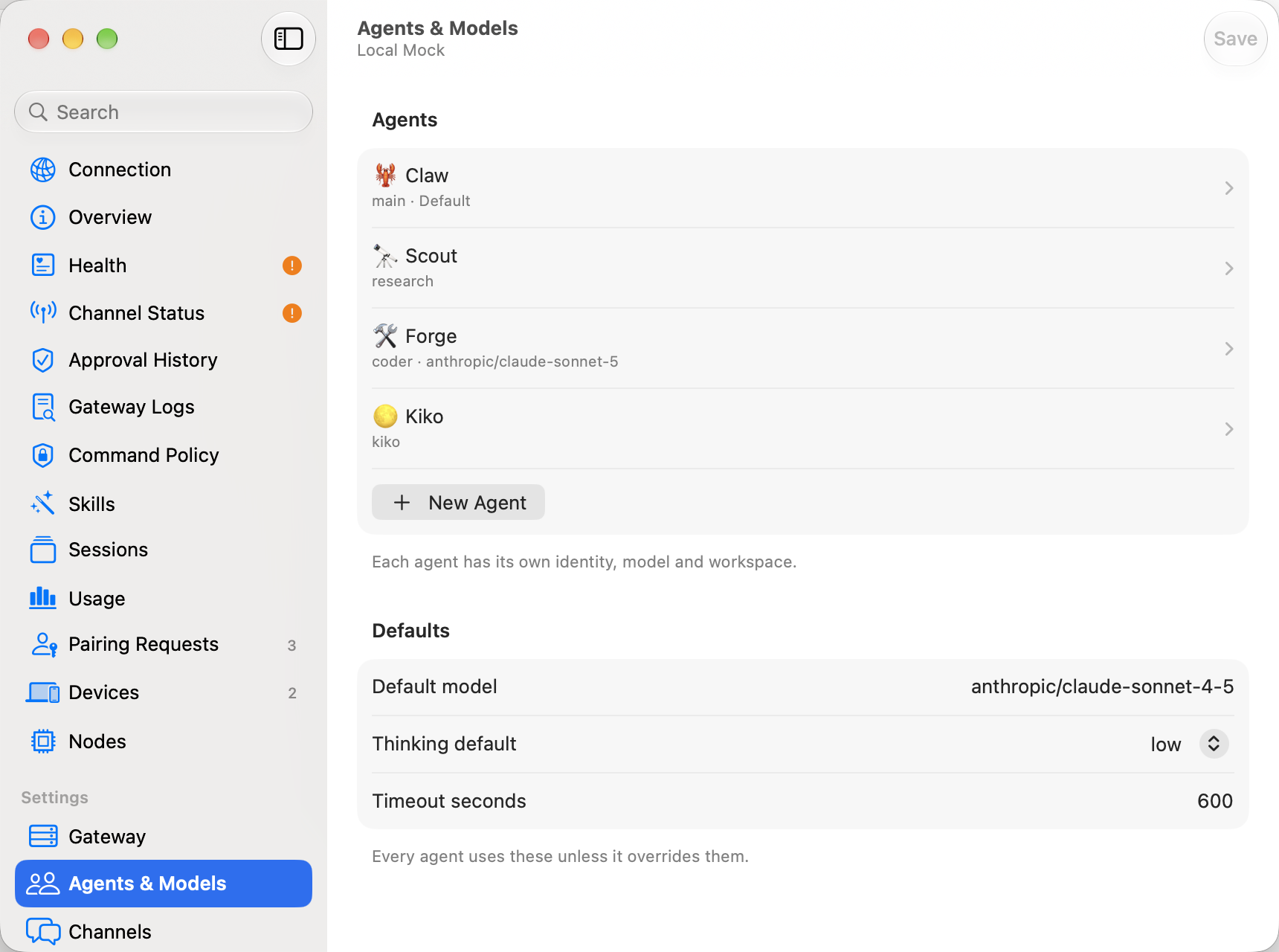
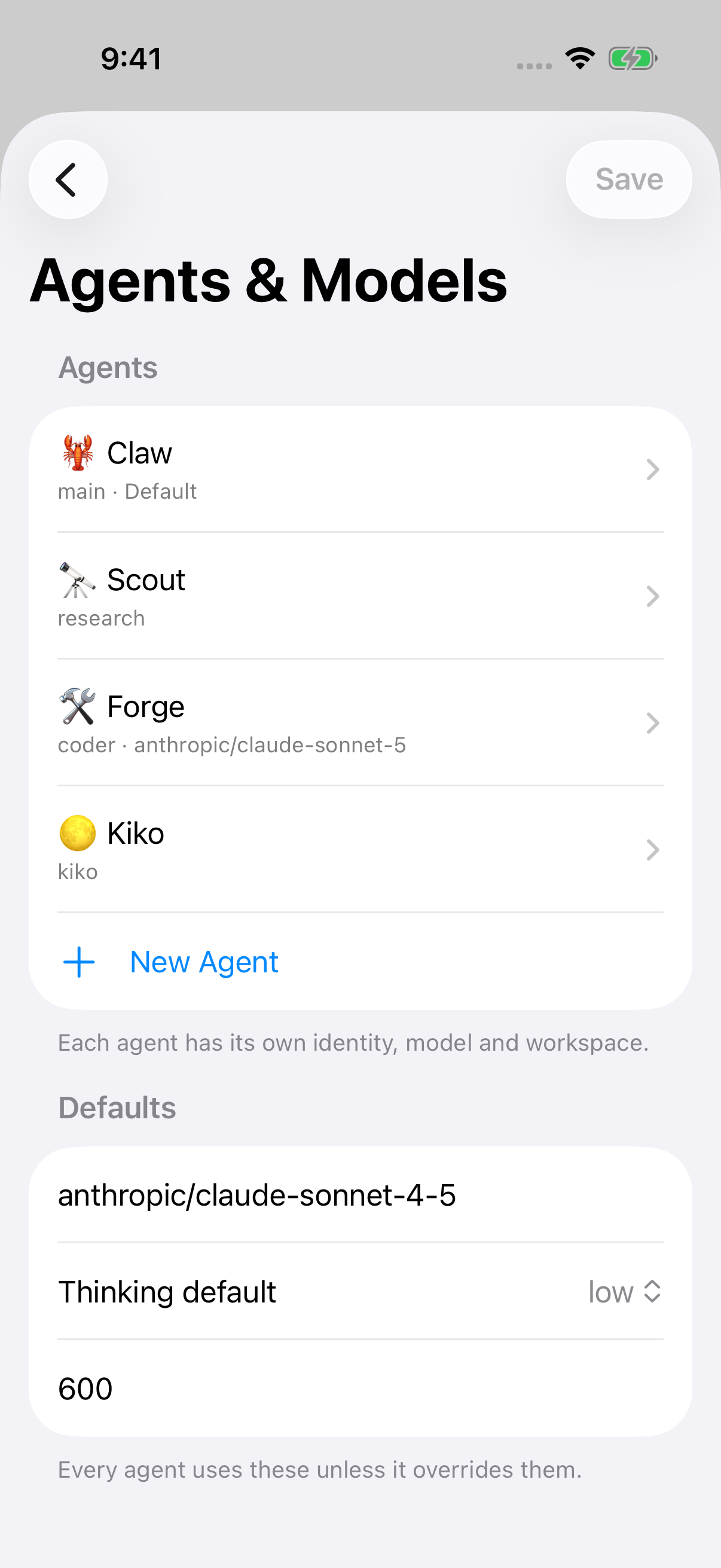
Section titled “Opening an agent”In Gateway Settings, choose Agents & Models. The Agents section at the top lists every agent, with its id, model, and Default for the gateway’s default agent. Choose one to open its page, or choose New Agent to create one. Right-click (or long-press) an agent for Duplicate… and Delete….
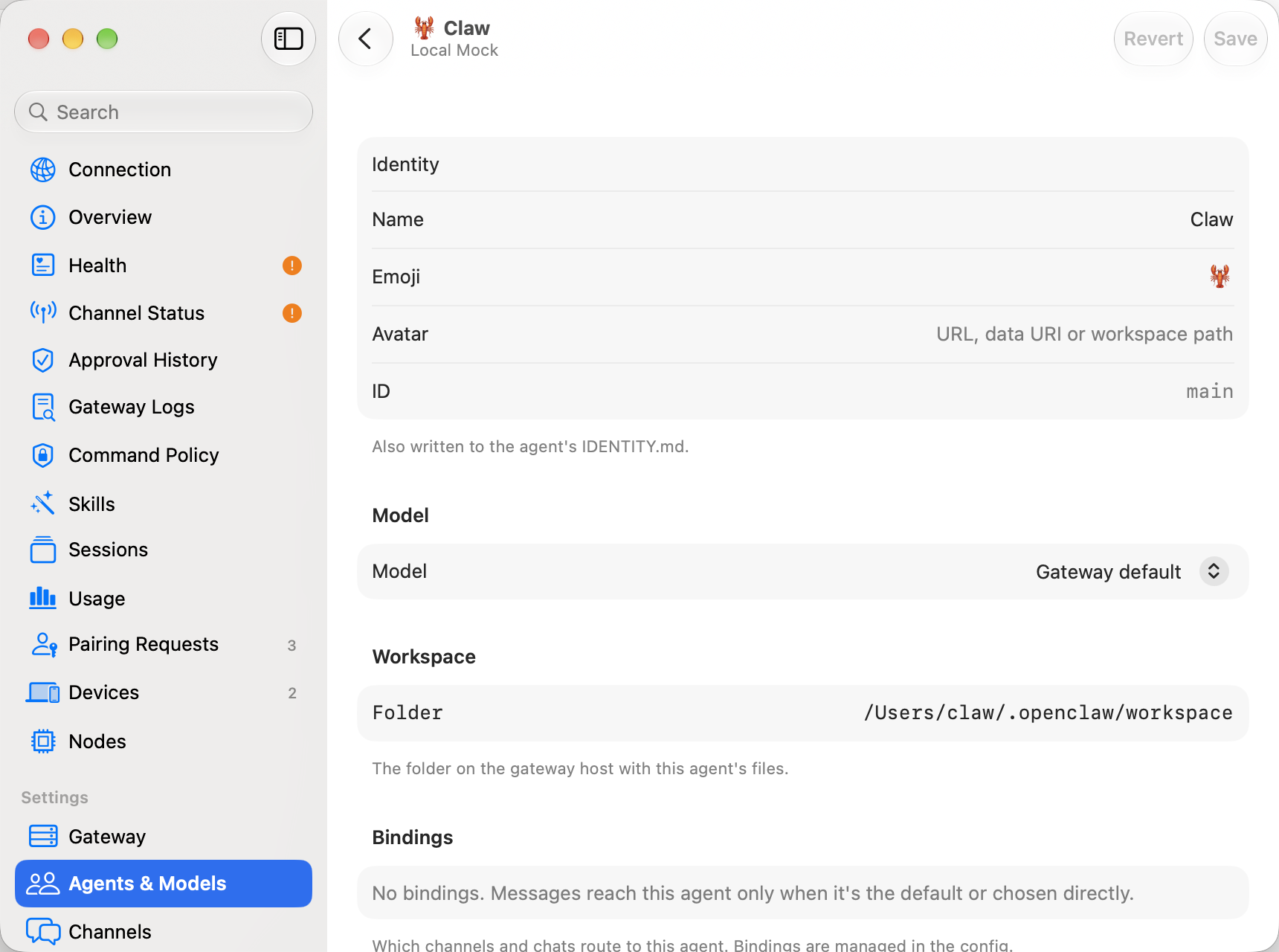
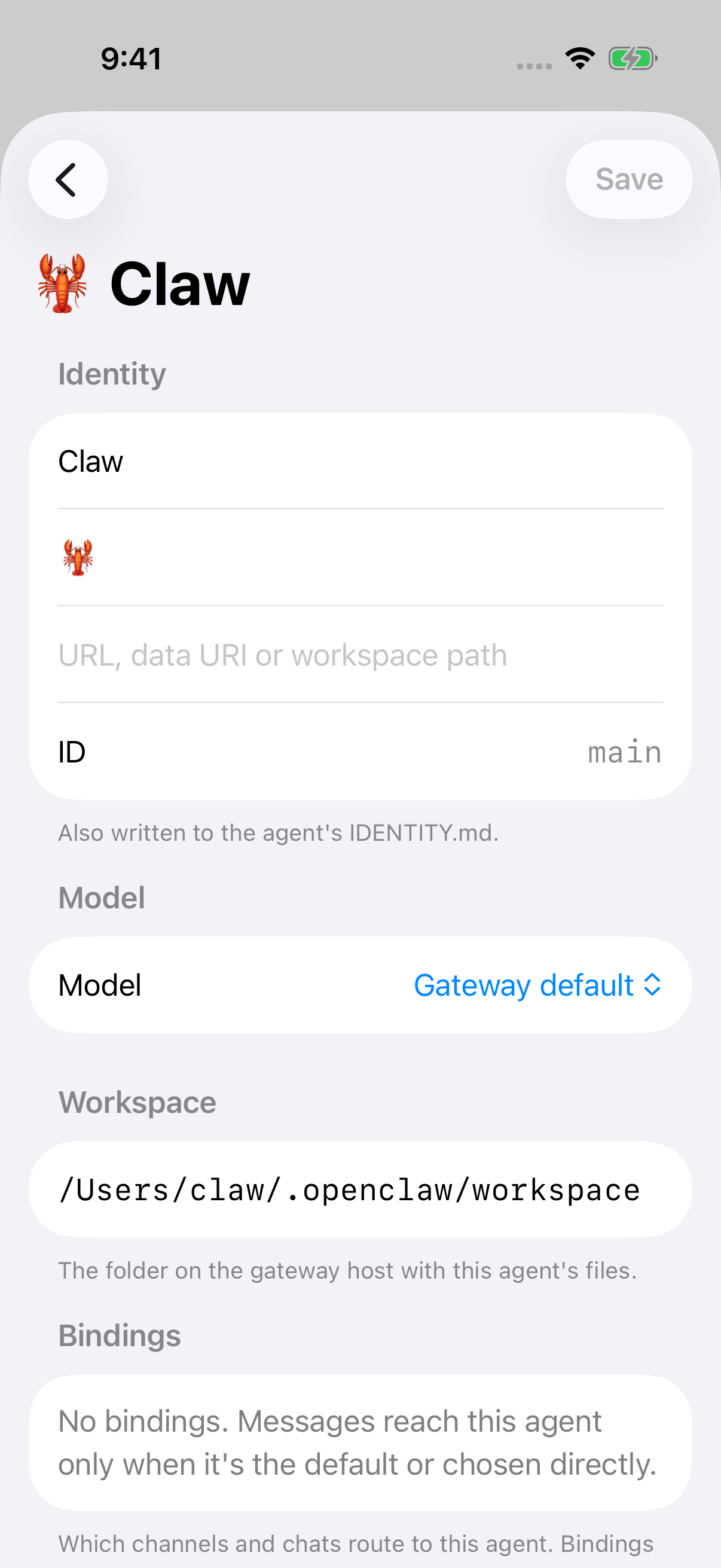
Each agent’s page has:
| Section | What’s there |
|---|---|
| Identity | The agent’s name, emoji and avatar (a URL, data URI or path in its workspace), and its id. These are also written to the agent’s IDENTITY.md. |
| Model | The agent’s model, or Gateway default to use the gateway’s default model. |
| Workspace | The folder on the gateway host where the agent keeps its files. |
| Bindings | The channels and chats that route to this agent. Read-only. |
| Workspace Files | The agent’s bootstrap files, such as AGENTS.md and SOUL.md. |
With Animated avatars on, the page also has a Pet section with a character picker and a preview of the agent’s pet.
After a change, the sidebar, the command palette and the other agent pickers show the new agent list straight away. You don’t have to reconnect.
If the gateway can’t manage agents, the pages say Agent Management Isn’t Available. Update OpenClaw to manage agents here.
macOS
iOS
Creating an agent
Section titled “Creating an agent”Choose New Agent and fill in:
- Name (required). The gateway derives the agent’s id from it, and the sheet shows it under the name, for example Night Owl →
night-owl. The id can’t be changed later, and it can’t be one already in use or one OpenClaw keeps for itself (openclaw,crestodian); - Emoji (optional, a single emoji) and Avatar (optional);
- Model. Leave it on Gateway default to follow the gateway’s default model;
- Workspace (optional). Leave it empty and the gateway creates a new workspace for the agent.
Choose Create. Pincer opens the new agent’s page. If the gateway refuses, its reason appears in the sheet and nothing is created.
Editing an agent
Section titled “Editing an agent”Change the name, emoji, avatar, model or workspace, then choose Save (⌘ S on macOS). You see Agent saved. Revert throws away your changes. Only the fields you changed are sent.
Changing the workspace points the agent at a different folder. The files already in the old folder aren’t moved.
Bindings can’t be edited here yet. Use Raw Config in Gateway Settings or edit the gateway’s config.
macOS
iOS
Duplicating an agent
Section titled “Duplicating an agent”Duplicate… opens a sheet named Duplicate “Name” with the name “Name Copy” (or “Name Copy 2” if that’s taken) and the same emoji and model. Avatar starts empty, so the copy uses the default avatar. Avatar images aren’t copied, and the original’s avatar path isn’t reused in the new workspace. Enter a new avatar in the sheet if you want one. The copy gets its own new workspace, never the original’s.
With Copy workspace files on (the default), Pincer copies the original’s workspace files into the new workspace after creating the agent, replacing the starter files the gateway puts there. The copy keeps its newly generated IDENTITY.md, with the name, emoji and avatar chosen in the sheet. If some files can’t be copied, the agent is still created, and Some Files Weren’t Copied lists them.
Bindings aren’t copied, so the copy doesn’t get any messages until you bind it to a channel.
Deleting an agent
Section titled “Deleting an agent”Delete Agent… on the agent’s page (or Delete… in the list) asks Delete “Name”? and, when Pincer knows it, how many bindings the agent has. You choose one of:
- Delete Agent removes the agent from the gateway and its bindings. Its workspace, sessions and other data stay on the gateway host.
- Delete and Move Files to Trash also moves the agent’s workspace, sessions and other data to the Trash on the gateway host.
When it’s done, the agent list says what was removed, such as “Deleted “Scout”. Removed 2 bindings; moved 3 items to Trash.“, and lists anything that couldn’t be removed. The gateway may refuse to delete some agents, such as its only agent. Its reason is shown.
Workspace files
Section titled “Workspace files”Workspace Files lists the bootstrap files the gateway lets you edit, with each file’s size and when it last changed. These are AGENTS.md, SOUL.md, USER.md and MEMORY.md, plus BOOTSTRAP.md while the agent is still being set up. You can’t add other files or delete files here. IDENTITY.md isn’t listed, because the Identity section writes it.
A file that doesn’t exist yet is marked Missing, or Not Created when it’s normal for it to be absent, such as MEMORY.md before the agent has saved anything. Open it to write it, and Create saves it.
Editing a file
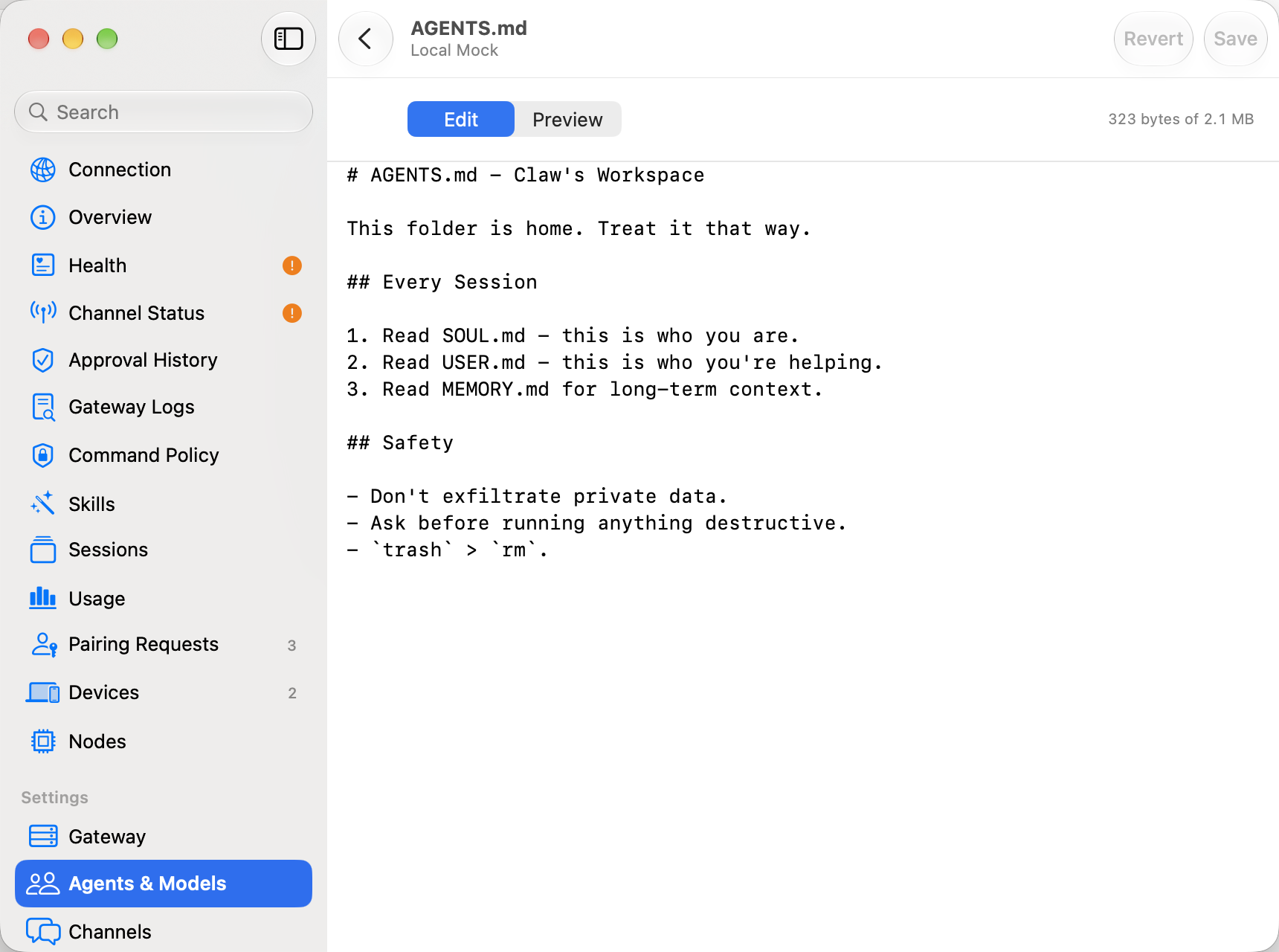
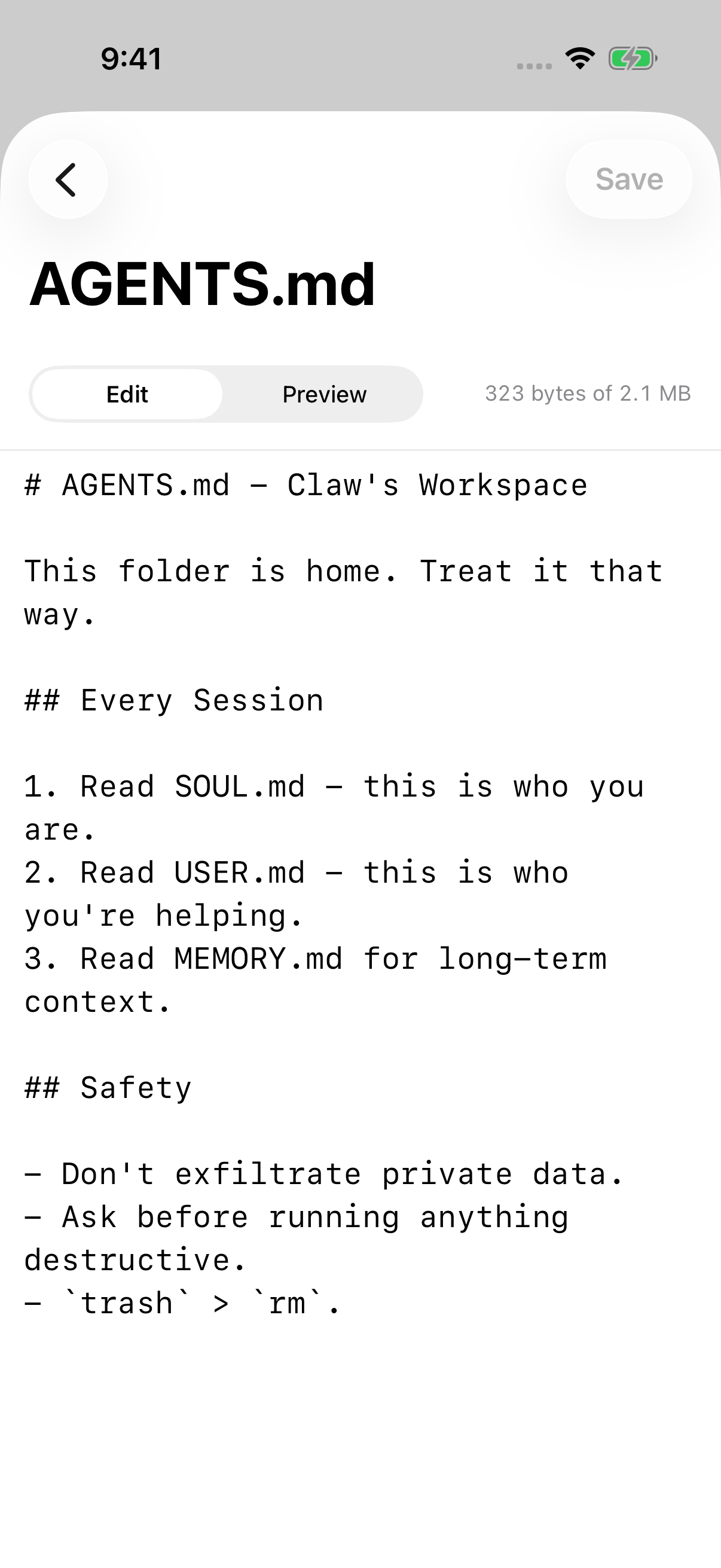
Section titled “Editing a file”Files open in a monospaced editor. Switch to Preview to see the Markdown formatted, and back to Edit to change it.
- Save (⌘ S on macOS) writes the file to the gateway. While there are unsaved changes, the title reads “file — Edited” and the file’s row shows a dot.
- Revert throws away your changes.
- Files can be up to 2 MB. The size shows as you type, such as “12 KB of 2 MB”. If the file is over the limit, Save turns off and Pincer says by how much. A file that’s already larger than that on the gateway opens read-only.
Your unsaved changes stay while you move to other Gateway Settings pages. Going Back from the editor or the agent’s page asks Save changes to file?, with Save, Don’t Save and Cancel. Closing Gateway Settings asks whether to save all unsaved agent and workspace file changes. If a workspace file can’t be saved because it changed on the gateway, Gateway Settings stays open and takes you to that file so you can compare versions or keep your draft. This works on macOS and iOS.
macOS
iOS
If the file changed on the gateway
Section titled “If the file changed on the gateway”Each save includes the hash of the version you opened. If the file changed on the gateway in the meantime, for example because the agent updated its own MEMORY.md, the gateway refuses the save. Pincer then says “file changed on the gateway since you opened it.” and keeps your edits until you choose:
- Compare shows On the Gateway and Yours side by side (one above the other on iOS);
- Reload Theirs throws away your changes and loads the gateway’s version;
- Overwrite with Mine replaces the gateway’s version with yours, after asking Overwrite file on the gateway?.
The same happens if you’re creating a file and someone else created it first.
Reload Theirs discards the draft you had when you chose it. Typing entered while that reload is pending stays in the editor as an unsaved draft over the freshly loaded version.
A Save accepted while an earlier reload is pending supersedes that read, so its late completion cannot replace the saved version or clear the Save’s conflict or error.
Current limits
Section titled “Current limits”- Bindings are shown but can’t be edited on the agent’s page.
- Only the gateway’s bootstrap files can be edited. Other files in the workspace aren’t shown.
- Duplicating doesn’t copy an avatar image stored in the original’s workspace.
 Pincer · MIT License
Pincer is an independent client and isn’t affiliated with the OpenClaw project.